THE SAIOS PORT USER MANUAL
Make yourself
at home.
Connect, organize and work with confidence. Your guide to the details.
Up and running
- Open SAIOS Port to an empty workspace. Your saved servers remain in the sidebar without connecting.
- Choose Servers → Add New Server, or Import from Prompt. Save the connection, then double-click its name to connect.
- Verify the server identity before trusting a new host. Use Local Terminal for this Mac.
Your first session
A native workspace for the machines you work with.
- Open SAIOS Port. It starts on an empty New Tab page; saved servers remain in the sidebar without connecting.
- Choose Servers → Add New Server. Enter a name, address, port and username. Choose the authentication method your server accepts.
- Choose Save to keep the connection without opening it, or Connect to start a session.
- For an SSH host you have not used before, compare its fingerprint with a trusted source before choosing Trust and Connect.

Bring your library from Prompt
Import saved connections, organization and appearance from Prompt on this Mac.
- Choose Servers → Import from Prompt. Port reads the local Prompt library and shows an import preview.
- Review the counts and duplicate handling before continuing. The importer can include servers, folders, Clips, custom themes and embedded icons.
- Complete the import, then check the resulting folders and server details in the sidebar.
- Add any credentials that were held separately in Prompt’s Keychain. They are not silently copied with the library.
Servers, folders & search
Keep a large library organized and open a whole group when you need it.
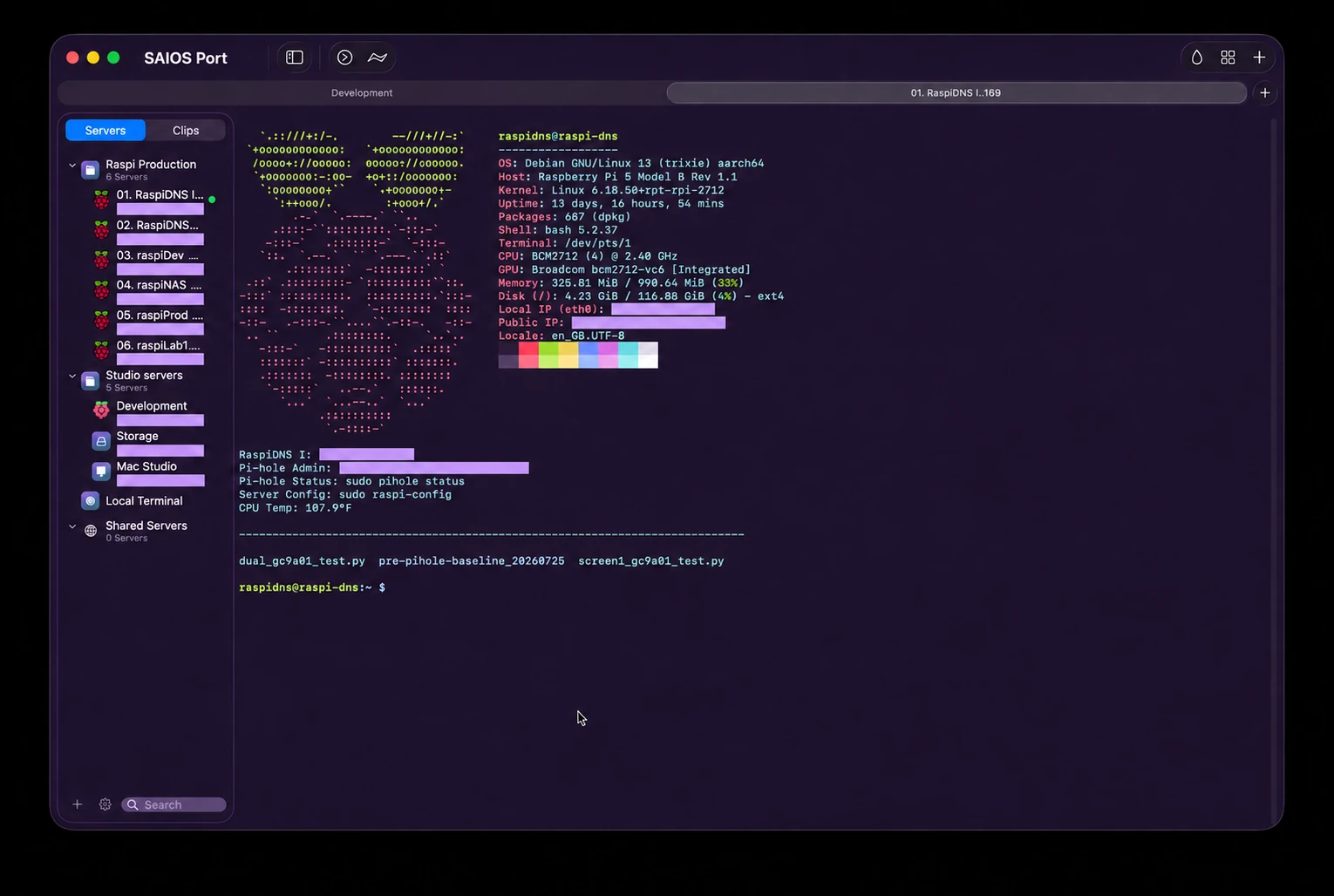
- Use the + button at the bottom of the sidebar to add a server or folder. Use the gear for actions on the selection.
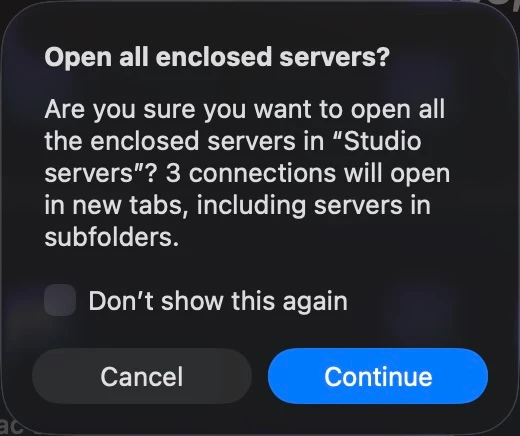
- Click a folder’s disclosure arrow to expand or collapse it. Double-click the folder name to open its enclosed servers, including subfolders, in new tabs.
- Review the connection count in the confirmation. Continue opens the group; Cancel opens nothing.
- Select Don’t show this again before Continue to remember your choice. Restore the prompt in Settings → General → Confirm before opening all servers in a folder.
- Type in the footer Search field to filter names, addresses or usernames. Matching servers remain grouped under their folders.
Use your Mac’s local shell
Load the shell and startup configuration you already use.
- Double-click Local Terminal in the sidebar, or choose File → New Local Tab.
- In Settings → Terminal, leave Local Shell empty to use the login shell configured for your macOS account. To override it, enter the full executable path.
- Apply Changes and open a new local terminal to use a changed shell. Existing tabs continue running their current process.
- Use Settings → General to choose whether new local terminals use the default working directory or the current terminal’s directory.
Windows, tabs & quick access
Move between sessions without interrupting the work running inside them.
- Use ⌘T for a new tab. Use File → New Local Tab for a local shell.
- Open the Servers window from the header’s server control or Servers → Show Servers.
- Use Open Quickly to find saved servers and Global Clips. Choose a result to open it.
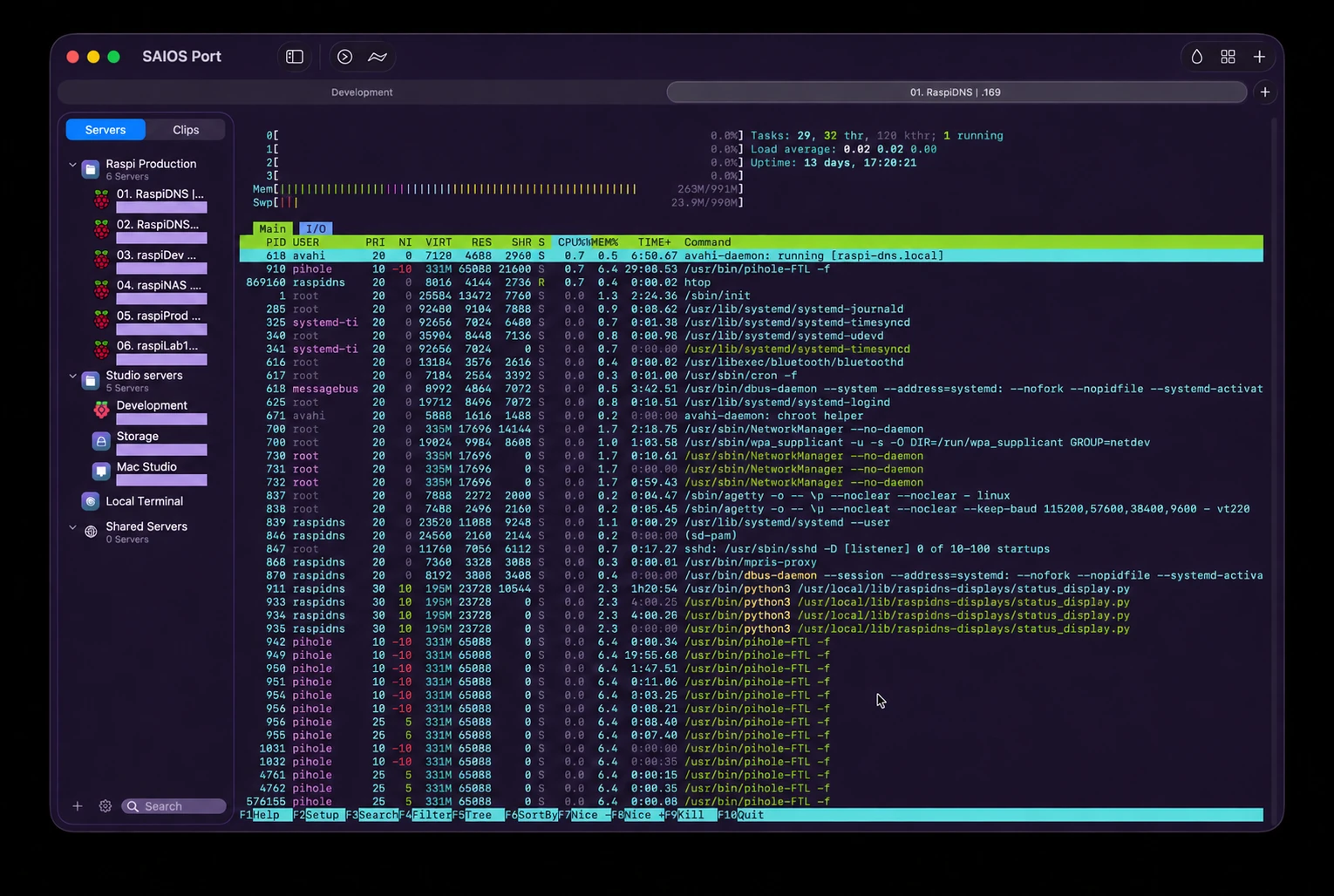
- Use Omniview to see open sessions. Select the intended sessions before broadcasting input.
- When a connection ends, use Reconnect to start it again. A reconnect starts a new connection; it does not restore a remote process that has already exited.
Build a library of Clips
Keep reusable commands in Global or alongside a specific server.
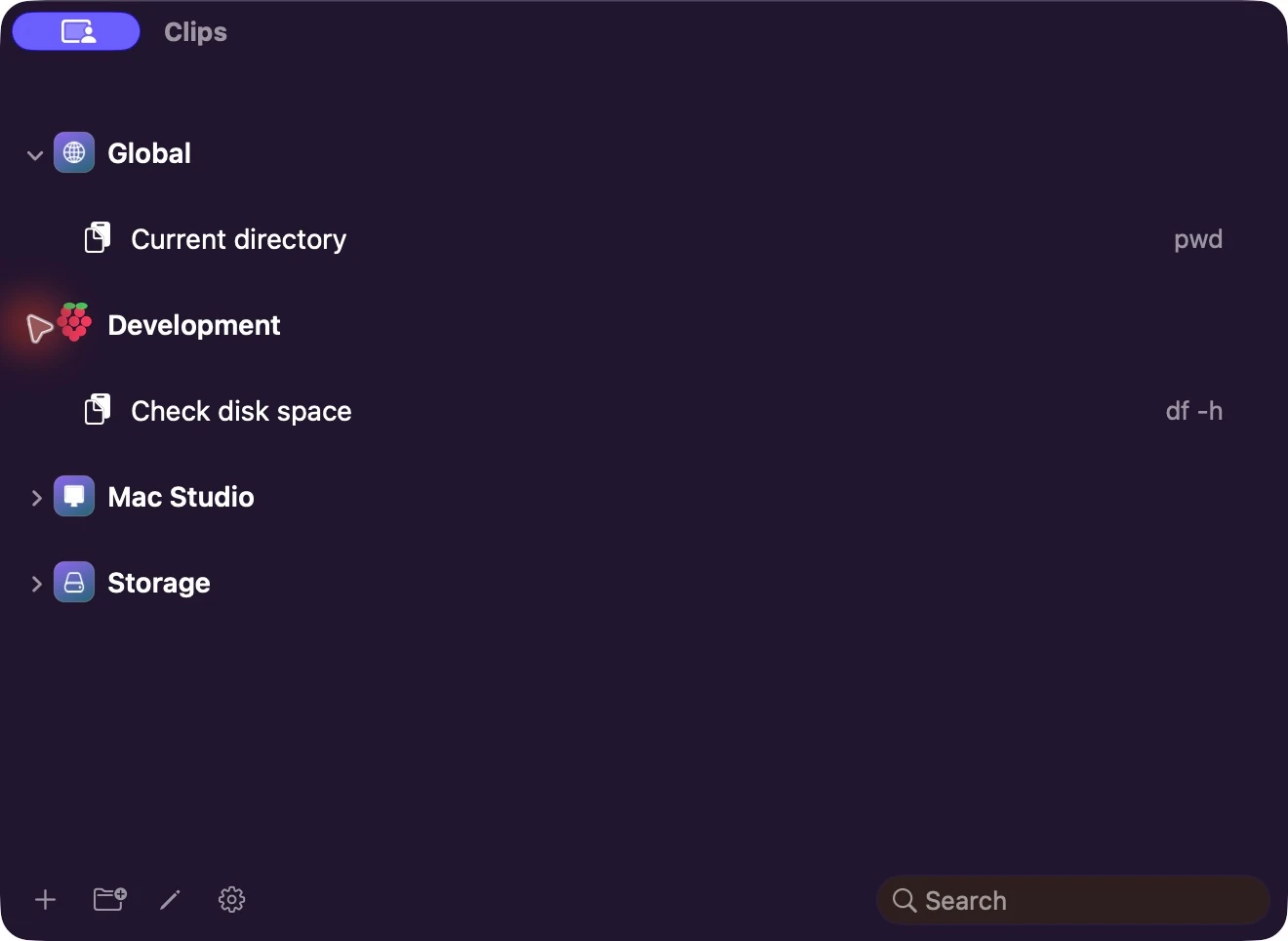
- Open Clips → Show Clips Editor. Global and every saved server appear as expandable sections, including those without Clips yet.
- Select Global or a server, then use + → New Clip. The editor inherits the selected scope.
- Enter a descriptive name and the exact text to insert. Use Available For to change the scope; Group lists only groups in that scope.
- Use the folder-plus button to add a Clip group. Select a Clip and use the pencil to edit it, or the gear for additional actions.
- Use Search to find a Clip by name or contents, or find a server section by name. The terminal sidebar shows Global Clips and Clips for its current server.
Make Port your own
Choose a palette, refine typography and recognize each machine at a glance.
- Open Settings → Themes. Select a palette, then choose Apply Changes to save it as the default and update open terminals.
- Choose a Window Theme independently, or use Same as Terminal Theme. The header’s droplet provides quick theme switching.
- Duplicate a built-in palette before editing its colors. Custom themes can be imported and exported.
- Use Settings → Display for fonts, size, spacing, padding and window dimensions.
- Edit a saved server and open its icon picker. Choose Image to select a PNG or other supported image, then save the server.
Connection options & keys
Choose the transport and authentication your environment needs.
- Edit a server to choose SSH, Telnet, Mosh, Eternal Terminal or port forwarding, and set its address and port.
- Use Settings → Keys to import or create a key. Select the appropriate key in the saved server’s authentication options.
- For a jump-host route, configure the jump host first, including its own username and authentication, then select it on the destination server.
- Open the server’s Options for terminal type, startup command, keep-alive interval and other connection settings.
- Mosh and Eternal Terminal also need their corresponding server programs installed on the destination.
Private sync across your Macs
Use the existing SAIOS service to synchronize an encrypted library.
- Export a separate recovery copy before evaluating sync on another device.
- Open Settings → Sync and enter https://loop.saios.me as the platform address.
- Sign in through the platform and approve this device. Use the same separate sync passphrase on each device.
- Review the sync status and resolve any reported conflicts. Keep the app’s recovery backups until you have checked the merged library.
- A new device should receive the existing library before you make extensive edits. Use Restore from Sync only when you intend to replace its local library.
Backups, exports & recovery
Keep an independent copy of the information you depend on.
- Choose Servers → Export Servers to save a portable copy. Use the selected-server action when you only need part of a library.
- Use the export’s encryption option for sensitive material and keep its passphrase separately.
- Settings → Sync offers recovery backups and conflict records when sync needs attention.
- Help → Show SAIOS Data Folder opens the app’s local data location. Close the app before manually restoring files, and preserve a copy of the current folder first.
When something needs attention
Start with the connection, the saved settings and the visible error.
- Connection refused or timed out: check the server address, port, network route and whether its service is running.
- Authentication failed: confirm the username and selected password or key, including credentials on every jump host.
- Server identity changed: stop and verify the new fingerprint independently. Do not accept it simply to dismiss the warning.
- A preference did not take effect: choose Apply Changes. Shell changes affect newly opened local terminals.
- An imported server has no password: enter the credential again in Port. Prompt’s separately stored Keychain passwords are not part of direct library import.
Alpha status & current limits
What is ready to review, and what still needs acceptance evidence.
- The app includes native terminals, server organization, editors, themes, import/export and private sync support. Individual implementation and test coverage vary.
- Full feature-by-feature comparison with Prompt remains unfinished. All macOS features stay in scope.
- Physical-device sync, network roaming, sleep/wake, all proxy combinations, VoiceOver, input methods and sustained rendering performance need further testing.
- Real hardware touch/PIN, Secure Enclave, PIV and certificate-expiry acceptance are pending. USB FIDO2 enrollment is not yet exposed in the interface.
- Text glow, VPN-on-demand and some Mac integration behaviors remain unfinished. Comprehensive Prompt 2 migration and import into a disposable Prompt installation remain pending.