THE SAIOS SQL USER MANUAL
Every step,
in the open.
SAIOS SQL is a native Mac workspace for browsing data, writing SQL and building visual queries. This manual follows the work from first launch through backup, with the steps, the outcome and the limits of each task.
Up and running
- Open SAIOS SQL. The synthetic Amethyst Records (sample) database connects locally, and a Welcome query opens.
- Put the caret in a statement and press ⌘↩. Press ⇧⌘↩ to run the whole script.
- Add your own database with ⇧⌘N. Use Test Connection, then Save. Nothing connects until you ask.
- Double-click a table to browse it. Edits stay staged until Review & Apply….
- Press ⇧⌘B for the visual Query Builder, and ⌘S to save a
.saiosquerydocument.
Known issues in 0.8.15
- Saved-query file picker and resize walkthrough remain open. Automated checks exercise saving and reopening a two-output query through an exact file path, followed by explicit Connect, Reload and Run. The native Open dialog and resizing during a repeated reopen still need a reliable hands-on check. Save and reopen visual queries
- Choose the notarized download. The 0.8.15 downloads ending in -notarized are Developer ID signed and Apple notarized. Older ad-hoc packages are retained separately. Candidate updates are not released until their own checks and notarization finish. Install the private preview
- Hands-on accessibility checks remain open. VoiceOver, IME, physical trackpad gestures and light-appearance walkthroughs have not been completed by hand. Known limitations
Get started
Install the preview, open the synthetic sample and learn the layout of the workspace.
SAIOS SQL is a private preview for Apple silicon Macs running macOS 26 or later. It is not offered as a public download.
Steps
- Use a build you were given access to. This website has no download link; ask us if you want a demo.
- Open the
.dmgdisk image. The installer window shows SAIOS SQL on the left and an Applications shortcut on the right. - Drag SAIOS SQL onto Applications, then open it from your Applications folder.
- Eject the SAIOS SQL Install disk image when you are finished.
- To update later, quit the running app first, then drag the new copy across. Finder handles any replacement prompt.
What happens next
The app opens to the synthetic sample workspace. Nothing connects to a server. Continue with First launch.
Limits
- Apple silicon (arm64) only. The minimum system is macOS 26.
- The 0.8.15 build 267 app and disk image ending in -notarized are accepted by Apple and stapled. Historical ad-hoc packages and unreleased candidates have separate signing status.
- The owner reported successful Neo installation and use of notarized 0.8.14. A complete independently observed downloaded-first-launch and physical-input walkthrough remains open.
- The disk image contains only the app and installer artwork. It holds no databases or saved connections.
If something goes wrong
- macOS will not open the app.
- Confirm you have the notarized package supplied for your version. If macOS still refuses it, contact us with the version and exact message. Do not bypass macOS security checks.
- Finder asks about replacing an existing copy.
- Quit SAIOS SQL first, then choose the replacement in Finder. Your connections and support data live in a separate folder, not inside the app.
The first window opens a local sample database and a Welcome query. You can try real SQL without credentials.
Steps
- Open SAIOS SQL. The sidebar shows Amethyst Records (sample), which is a local SQLite file on your Mac.
- Read the Welcome tab. It contains four ready SELECT statements and a commented-out UPDATE.
- Click inside the first SELECT and press ⌘↩. The result appears in the lower pane.
- Press ⇧⌘↩ to run the whole script. Each result gets its own tab, followed by Messages.
- Choose SAIOS SQL → Settings… (⌘,) if you want to change appearance, row limits or safety prompts.
What happens next
Only local sample files connect automatically. Every server connection waits for you to choose Connect, and restored tabs never reconnect on their own.
Limits
- All sample content is invented. It is stored in the app's support folder,
~/Library/Application Support/com.saios.sql/Samples. - The current workspace uses a neutral layout. Some older images on other pages show an earlier amethyst theme.
If something goes wrong
- The sample is missing from the sidebar.
- Use the sidebar search field in case a filter is active, then check View → Connections. Support data lives in
~/Library/Application Support/com.saios.sql. - A tab reads as recovered rather than Welcome.
- Your earlier session was restored. See Recover your work.
Amethyst Records is a small invented record label. It is built to show how SAIOS SQL treats joins, NULL, empty text and binary values.
Steps
- In the sidebar, expand Amethyst Records (sample). Under Tables you will see
albums,artists,customers,listening_log,order_items,ordersandtags. Expand Views to findalbum_sales, which is a view rather than a table. - Press ⌘T for a new query tab. Paste the first example below and press ⌘↩. It joins two tables and returns 30 rows.
- Run the second example. Customers 5 and 10 hold empty text in
notes, while most others hold NULL. The grid andnotes_lengthkeep those two cases apart. - Run the third example. Albums 3, 6 and 9 have blobs, album 7 has a zero-length blob, and the rest are NULL.
- Select any value and press ⌥⌘I to show the inspector, which offers Text, JSON and Hex.
- Try a safe write: choose Tools → Transaction → Begin Transaction, run
UPDATE albums SET stock = stock + 10 WHERE album_id = 1;, then choose Roll Back.
SELECT ar.name, al.title
FROM albums AS al
JOIN artists AS ar ON ar.artist_id = al.artist_id
ORDER BY ar.name, al.title;
Six artists with five albums each: 30 rows.
SELECT customer_id, full_name, city, notes, length(notes) AS notes_length
FROM customers
WHERE customer_id <= 12;SELECT album_id, title, typeof(cover_art) AS storage, length(cover_art) AS bytes
FROM albums
WHERE album_id <= 9;SELECT title, artist, units_sold, revenue
FROM album_sales
ORDER BY revenue DESC
LIMIT 10;album_sales is listed under Views, not Tables. Its data is read-only in the grid.
SELECT status, COUNT(*) AS order_count
FROM orders
GROUP BY status
ORDER BY order_count DESC;
The sample holds 160 orders.
SELECT c.full_name, COUNT(*) AS order_count
FROM customers AS c
JOIN orders AS o ON o.customer_id = c.customer_id
GROUP BY c.customer_id, c.full_name
ORDER BY order_count DESC
LIMIT 10;
What happens next
After Roll Back, the stock value returns to what it was. If you choose Commit instead, the change stays in your local sample file.
Limits
- The sample has 6 artists, 30 albums, 48 customers, 160 orders and 120 listening-log rows.
cover_artholds generated test bytes. It is not a real image.album_sales.units_soldandrevenueadd up all order items, including items on cancelled orders. The view's cancelled-order join does not filter them out, so treat the totals as sample data rather than a sales pattern to copy.
If something goes wrong
- An example returns
no such column. - Check that the tab's Connection menu shows the sample. These examples use the sample schema and may not run elsewhere.
Commitwas chosen by mistake.- The sample contains no real data, so correct the row with another UPDATE.
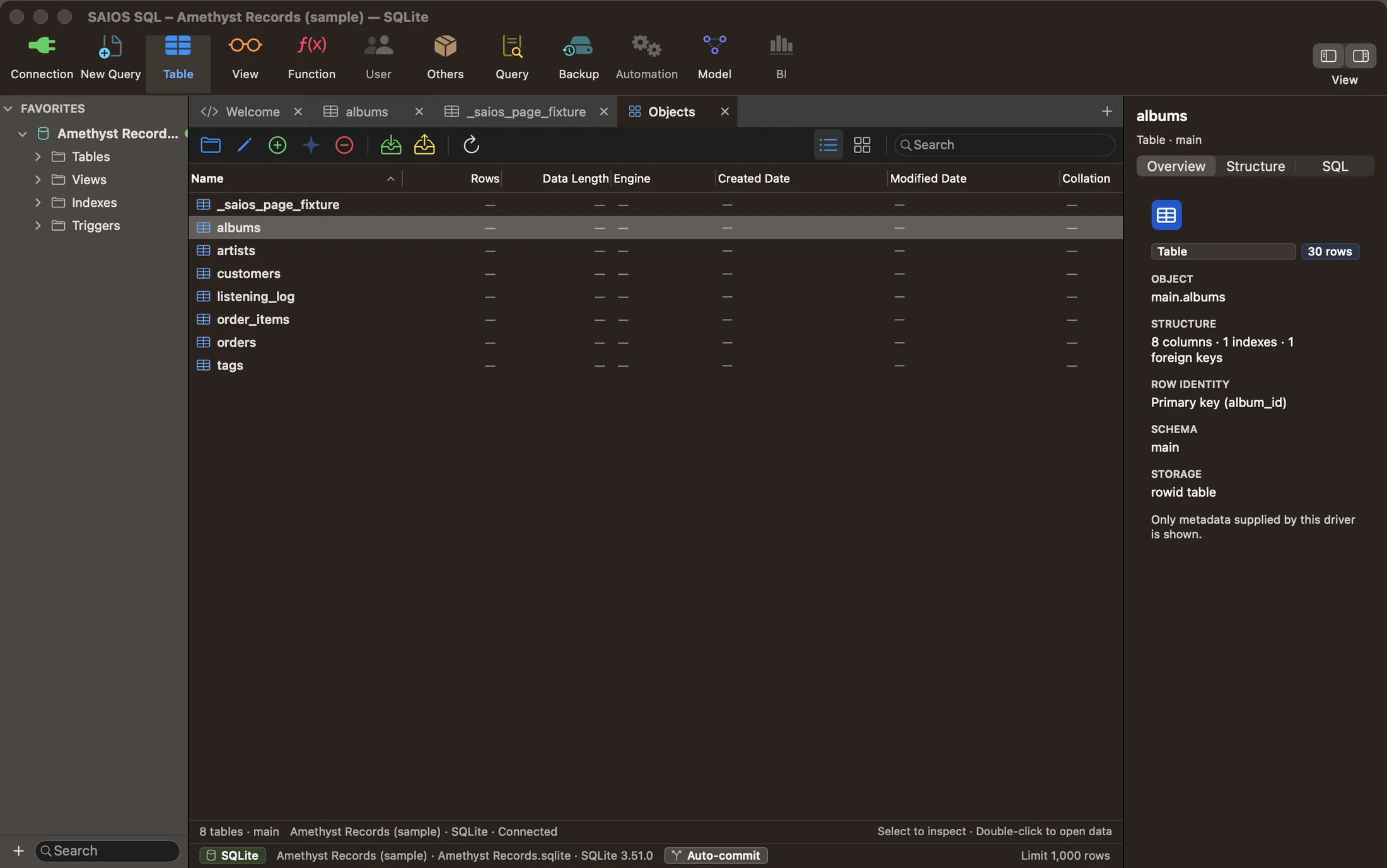
The window has a full-width tool ribbon, a connection tree on the left, tabbed work in the center, an information pane on the right and a status strip below.
Steps
- Use the ribbon across the top: Connection, New Query, Table, View, Function, User, Others, Query, Backup, Automation, Model and BI.
- Use the left sidebar to browse connections and objects. Its search field filters both. Press ⌃⌘S to hide or show it.
- Work in tabs. Press ⌘T for a new query, ⌘W to close a tab, and ⇧⌘{ or ⇧⌘} to switch.
- Press ⌥⌘I to show or hide the right information pane. It describes the current tab and the selected object or value.
- Read the status strip at the bottom for engine, connection, transaction state, duration, row count and limit.
- Check the menu bar as you move between tabs. SQL tabs add Run and Format, the visual builder adds Run, and table tabs add Table.
- Choose Help → Online Help to open this help center in your default browser. SAIOS SQL Help remains available inside the app without a browser.
What happens next
Press ⌘1, ⌘2 and ⌘3 to move focus between the sidebar, the editor and the results. See Keyboard shortcuts.
Limits
- User, Automation and BI open a menu that says they are not implemented. No user management, scheduler or dashboards exist in this release.
- Others collects Import Data…, Import Batch…, Export Result…, Data Transfer, Schema Compare, Activity Monitor and other object kinds.
- Contextual menus appear only for the tab type that supports them.
If something goes wrong
- A ribbon category seems to do nothing.
- Table, View and Function open the object list for the current connection. Select a connection in the sidebar first.
- A window is too narrow to show every tool.
- The ribbon and the Objects toolbar scroll sideways. Widen the window or scroll them.
Connect
Save connections, test them and protect them with SSL/TLS or an SSH tunnel.
A connection is a saved profile. Saving it does not connect, and testing it connects once and disconnects.
Steps
- Press ⇧⌘N, or choose File → New → New Connection….
- Choose an Engine. The line below it reports whether this Mac is ready, and Support Details shows the adapter, runtime and tested versions.
- Enter a Name. For a server, enter Host, Port, User and Password. For SQLite or DuckDB, use Choose… to pick a file.
- Leave Save password in Keychain on if you want to store the password, or turn it off to be asked each time.
- Open Databases to set a Default database if you need one. Open SSL/TLS or SSH if your server needs them.
- Choose Test Connection. It connects once with these settings and reports the server version, TLS state and SSH route.
- Choose Save. Then right-click the connection in the sidebar and choose Connect.
What happens next
The sidebar lists the connection's databases or schemas. Choose Browse Objects to open the object list, or New Query for an editor on this connection.
Limits
- A profile can be saved for any listed engine, but saving or listing one is not proof of support. See Supported engines.
- Passwords are held only in the macOS Keychain under
com.saios.sql. Profile files keep references, not passwords. - HTTP tunneling is not available. Its page says so and saves nothing.
- All databases and schemas your login can see appear in the sidebar. There is no filter that hides them.
If something goes wrong
- Test Connection is disabled.
- The runtime for that engine is missing on this Mac. Hover over the button or open Support Details for what it needs.
- The test fails with a TLS or host-key message.
- See SSL/TLS or SSH tunnels. Change one setting at a time and test again.
- A profile will not save.
- If the message mentions the password, the Keychain refused it and the profile was not saved. Check Keychain access, or turn off Save password in Keychain.
Group profiles with folders, tags and favorites. Use read-only mode when you only need to look.
Steps
- Right-click a connection and choose Edit Connection….
- On Advanced, set a Folder, comma-separated Tags and Favorite. Connect timeout (s) and Query timeout (s) are here too.
- On Remarks, add notes for yourself. They are saved with the profile and never sent to the server.
- On General, turn on Read-only (enforced by the engine where supported) for look-only work.
- Open the Favorites menu to jump to a favorite. Choosing one opens its object list and does not connect.
- Use Duplicate to copy a profile. The copy does not inherit the saved password.
- Use Delete Connection… to remove a profile and its Keychain password. The database itself is not touched.
What happens next
Read-only connections can still browse, run SELECT and open related records. Write actions are disabled or refused.
Limits
- Read-only mode is enforced for SQLite, PostgreSQL, MySQL, MariaDB and DuckDB.
- Through ODBC, read-only is passed to the driver as a hint and is not claimed as enforced.
- Do not put passwords in Remarks or Driver options.
If something goes wrong
- A statement is refused on a read-only connection.
- That is the protection working. Use another profile with write access if you intended the change.
- Delete Connection… only beeps.
- A running job or an open tab is still using that connection. Let it finish or close it, then try again.
Choose how strictly the app checks a server. Only the two Verify modes confirm who you are talking to.
Steps
- Open the connection and choose SSL/TLS.
- Choose a Mode. Off never uses TLS. Prefer uses it if offered and Require insists on it, but neither proves the server's identity.
- Choose Verify certificate authority to check the certificate chain, or Verify certificate and host name to check the name as well.
- If your server uses a private certificate authority, enter its file in CA certificate. Leave it empty to use the system trust store.
- If the certificate's name differs from the host you connect to, enter the expected name in Verify name.
- Choose Test Connection and read the TLS line in the result.
What happens next
When you connect through an SSH tunnel, the original host name is still the one verified.
Limits
- Verified behavior covers PostgreSQL and MySQL, including name mismatch and untrusted CA refusal.
- Client certificates cannot be configured in this editor, and client-certificate authentication has not been tested.
- For SQL Server, Oracle and Snowflake, TLS settings are mapped to the vendor driver but have not been tested against a server.
If something goes wrong
- The test reports a host name mismatch.
- Connect with the name on the certificate, or enter it in Verify name if you know it is correct. Do not lower the mode just to pass.
- The test reports an untrusted certificate.
- Enter your organization's CA file in CA certificate.
The app starts macOS OpenSSH, forwards through a loopback-only port and checks host keys against its own known_hosts file.
Steps
- Open the connection, choose SSH and turn on Connect through an SSH tunnel.
- Enter SSH host, Port and SSH user.
- Choose Auth: SSH agent / default keys, Private key file or Password.
- Choose Review Host Key… and compare the fingerprints with ones your administrator gave you through a trusted channel.
- Choose Trust only if they match, then choose Test Connection.
What happens next
The result confirms the route with the host key verified. The tunnel closes when the connection closes.
Limits
- An unknown or changed host key is refused until you review it.
- PostgreSQL over a tunnel has been tested with a disposable server. The Password and key-passphrase path has not been tested.
- There is no automatic reconnect. Reconnect manually if a tunnel drops.
- The SSH page is not shown for file databases, ODBC or Snowflake.
- Backup and restore jobs for MySQL, MariaDB and PostgreSQL do not run through SSH.
If something goes wrong
- The test says the host key is not trusted.
- Use Review Host Key…. If a known server's key has changed, ask its administrator before trusting it.
- The tunnel opens but the database refuses you.
- Host and port on General are as seen from the SSH server. Check them and the database login.
Availability depends on three separate facts: whether adapter code exists, whether its runtime is on your Mac, and which real engine versions have been tested.
Steps
- Choose Help → Supported Engines to see these three facts for your Mac, including what is installed now.
- In a connection, read the status line under Engine, then open Support Details for the tested version and scope.
- For SQL Server, Oracle, Snowflake or another ODBC source, install the vendor driver and a driver manager yourself. The app never installs them.
- After connecting, read the Test Connection result. Compatible products may be detected and noted there, but detection is not acceptance.
Each row separates what exists from what has been tested. Status reflects release 0.8.15.
| Engine | Status | How it connects | Tested with | Backup and restore | Key limits |
|---|---|---|---|---|---|
| SQLite | Verified | Built in, through the macOS system library. File based. | SQLite 3.51.0 | Whole main file to a verified package; restore to a new file. | Attached and temp databases are outside backup. |
| PostgreSQL | Verified | Built-in native protocol. No client library needed. | PostgreSQL 17.11 on a disposable server, including TLS and an SSH tunnel | One schema's tables, data and owned sequences, using your pg_dump and pg_restore. Tools 17.11 tested. | Server tools are yours to install. Backup excludes views, routines and triggers. |
| MySQL | Verified | Built-in native protocol. | MySQL 8.4.10 LTS on a disposable server | InnoDB tables and data, using your mysqldump and mysql. Version 8.4.10 tested. | Grid editing needs verified InnoDB storage. DDL commits implicitly. |
| MariaDB | Verified | Same adapter as MySQL, with MariaDB detection. | MariaDB 11.4.13 LTS on a disposable server | InnoDB tables and data, using your mariadb-dump and mariadb. Version 11.4.13 tested. | JSON is reported as text. FULL JOIN is refused. |
| DuckDB | Verified | Embedded. Library v1.5.6 ships with the app. File based. | DuckDB v1.5.6 | Not available. | Transaction state is tracked by the app. |
| ODBC Data Source | Partly verified | Generic bridge. You install unixODBC or iODBC and a driver. | unixODBC 2.3.14 with the SQLite ODBC driver only | Not available. | Read-only is a hint only. No entire-table export and no related-value lookup. Other drivers are not covered. |
| SQL Server | Adapter only, untested | ODBC bridge with Microsoft ODBC Driver 18, which you install. | No SQL Server has been tested | Not available. | Connection and TLS settings are mapped and unit-tested only. |
| Oracle | Adapter only, untested | ODBC bridge with Oracle Instant Client ODBC, which you install. | No Oracle server has been tested | Not available. | Set the service name in Driver options. Mapping is unit-tested only. |
| Snowflake | Adapter only, untested | ODBC bridge with the Snowflake ODBC driver, which you install. | No Snowflake account has been tested | Not available. | Set account, warehouse and role in Driver options. No SSH tunnel. |
- Verified means automated tests against that real engine and version. It does not mean every feature has been checked on it, so see each chapter.
- Native interface acceptance mostly uses SQLite. Other engines are covered through core engine tests unless a chapter says otherwise.
- Compatible products such as Amazon RDS, Aurora, Supabase, CockroachDB, Redshift, TiDB and PlanetScale may connect and be detected, but none has been tested.
What happens next
The table below shows what has been tested. Use it together with the feature chapters, because backup, paging and read-only support differ by engine.
Limits
- No universal SQL support is claimed. A dialect or connection-form entry does not establish that an engine works.
- Compatible and cloud products such as CockroachDB, Redshift, TiDB, Vitess and YugabyteDB have not been tested.
- Automated engine tests ran against disposable local servers, not production systems.
If something goes wrong
- The status says a database library is missing.
- Support Details names the vendor driver to install. For ODBC engines you also need unixODBC or iODBC.
- My engine is not listed.
- Try ODBC Data Source if a macOS arm64 ODBC driver exists. Treat that as untested until you have checked it yourself.
Explore
Find tables, views and relationships before you change anything.
The Objects tab lists what a database contains, with statistics where the server supplies them and details for the selected item.
Steps
- Single-click a connection, a database or schema, or the Tables group in the sidebar. The center lists its objects.
- Click a table to see Overview, Structure and SQL in the information pane. Double-click to open its data in a new tab.
- Use the compact icon row: Open, Design, New, Delete, Import, Export and Refresh. Hover over any icon for its name.
- For tables, use the list and grid buttons at the right to change the layout. Use Search for names, kinds, parent tables and comments.
- Right-click the toolbar to switch schema or object kind.
- To remove an object, select it and use Delete. Review the exact DROP statement before confirming.
What happens next
Open and Design create separate tabs. Selecting an object only reads its metadata, and rows load when you open it.
Limits
- Open, Design and Delete follow the selection and are disabled on read-only connections where they would write.
- Statistics the driver does not supply stay unknown rather than estimated.
- View attributes such as definer and check option depend on what the server reports.
- New Table with AI is not implemented. Use the SQL Assistant for query SQL.
- SQLite Delete refuses a parent table that is referenced by others, which prevents cascading loss of child rows.
If something goes wrong
- The list is empty.
- Connect first, then use Refresh or press ⌘R. Check that you selected the right schema and object kind.
- A statistic is blank.
- The server did not provide it. Blank does not mean zero.
Functions, procedures, triggers, indexes and sequences can be listed and inspected where the engine reports them. This is an inspection view, not a routine editor.
Steps
- Connect, then choose Function in the ribbon.
- For other kinds, choose Others and pick one under Other Object Kinds.
- Select an item and read Overview, Structure and SQL in the information pane.
- To change a routine, write the statement yourself in a query tab.
What happens next
Selecting an item reads metadata only. Nothing runs.
Limits
- There is no routine editor or debugger, and no user or role manager.
- What appears depends on the engine and on your login's visibility.
- Routine capability is declared for PostgreSQL, MySQL and MariaDB. Triggers are also reported for SQLite.
If something goes wrong
- A kind shows nothing.
- The engine may not have that kind, or your login may not be able to see it.
Generate a read-only diagram of a schema's tables and foreign keys.
Steps
- Choose Model in the ribbon, or Tools → ER Diagram (Model).
- Choose the connection and schema, then choose Reverse Engineer.
- Drag tables to arrange them and use Zoom to fit more on screen.
- Double-click a table to open its data.
- Choose Export PNG… or Export PDF… to save the diagram.
What happens next
The diagram reflects the schema when it was read. Choose Reverse Engineer again after structural changes.
Limits
- It is a reverse-engineered view. Model documents, forward engineering and saved layouts are not implemented.
- Moving tables does not change the database.
If something goes wrong
- Tables appear with no relationship lines.
- Lines come from declared foreign keys. A schema without them shows only tables.
Write and run SQL
Edit, run, cancel and reuse SQL with clear transaction state.
A native text editor with syntax colors, line numbers, completion, find and formatting.
Steps
- Press ⌘T for a new query tab, and check the Connection menu above the editor. Each tab has its own connection choice.
- Type SQL. Press ⌃Space for completion from loaded table and column names.
- Press ⌥⌘L or choose Beautify SQL to format, and press ⌘/ to toggle a comment.
- Press ⌘F to find, or ⌥⌘F to find and replace.
- Press ⌘S to save a
.sqlfile, or ⇧⌘S to save a copy. Use ⌘O to open one. - In the sidebar, right-click a table and choose Insert SELECT into Editor for a starting query.
What happens next
Unsaved SQL is checkpointed locally when recovery is on. If a saved file changed on disk, Save offers Cancel, Save As… or an explicit replacement.
Limits
- Completion uses names already loaded for the connection.
- The formatter changes layout and keyword case. Review it before relying on the result in engine-specific SQL.
- IME input and the completion popup still need hands-on acceptance.
If something goes wrong
- Syntax colors or completion look wrong for my engine.
- The dialect follows the tab's connection. Choose the right connection.
- Save refuses to overwrite a file.
- The file changed outside the app. Choose Save As… to keep both versions, or replace it deliberately.
Run a selection, the statement at the caret or a whole script. Every result stays separate and in order.
Steps
- Select text, or place the caret in a statement, and press ⌘↩ or Run.
- Press ⇧⌘↩ or Run Script to run everything. Each result set gets a tab such as Result 1 · 10.
- Open Messages for row counts, notices and errors. It shows a warning mark when a statement failed.
- Press ⌘. or Stop to cancel. The session remains usable.
- Press ⌥⌘E or Explain to see the engine's plan without running the statement.
- If a confirmation appears, read it. Run proceeds and Cancel leaves the database unchanged.
What happens next
Results load up to the row limit and are labeled when truncated. Statements are recorded in query history when history is on.
Limits
- The confirmation covers UPDATE and DELETE without WHERE, DROP, TRUNCATE and ALTER … DROP. It is a convenience based on statement shape, not a safety guarantee.
- Explain is available for SQLite, PostgreSQL, MySQL, MariaDB and DuckDB.
- Cancellation depends on the engine and has been tested on the five verified engines.
- With Auto-commit on, a change is permanent when the statement completes.
If something goes wrong
- Nothing happens when I press ⌘↩.
- Check that the tab has a connection. If it says it is not connected, choose Connect.
- The result is marked truncated.
- Raise Row limit or Result memory (MB) in Settings… → Results, or narrow the query. A table tab can page instead.
- A query will not stop.
- Cancel asks the engine to stop, and some work takes time to unwind. Other tabs on the same connection wait their turn.
Write placeholders and supply values in a prompt. Values are bound by the driver and never spliced into SQL.
Steps
- Write a statement with a placeholder such as
?,:nameor$1. - Press ⌘↩. A Statement parameters prompt opens.
- Enter a value for each placeholder. Leave NULL checked to bind NULL.
- Choose Run.
SELECT title, released, price_cents
FROM albums
WHERE genre = :genre
ORDER BY released;
Try Ambient or Dream Pop in the prompt.
What happens next
The query runs with bound values. Empty text and NULL remain different values.
Limits
- Bound parameters are available on the verified engines and through ODBC where the driver supports them.
- Placeholders inside quoted strings or comments are ordinary text.
If something goes wrong
- No prompt appears.
- The placeholder may be inside a string. Remove the quotes around it.
- A comparison returns no rows.
- Check that NULL is unchecked, and remember that
= NULLnever matches. UseIS NULL.
Transaction state is always visible. Nothing commits on your behalf when you close, quit or disconnect.
Steps
- Read the status strip. Auto-commit means each statement is permanent when it completes.
- Press ⌥⌘B or choose Begin.
- Run your statements. All tabs using that connection share the same session and the same transaction.
- Press ⌥⌘K to Commit, or ⌥⌘R to Roll Back.
What happens next
Quitting or disconnecting with an open transaction asks first. Remote connections and open transactions are never resumed after relaunch.
Limits
- MySQL-family servers commit implicitly on DDL statements such as CREATE TABLE.
- DuckDB transaction state is tracked by the app, because its C API does not report it.
- Entire-table export, import batches and backup refuse to run while your own transaction is open. They never resolve it for you.
If something goes wrong
- A job says a transaction is open.
- Commit or roll back first. The job will not end your transaction for you.
- PostgreSQL reports a failed transaction.
- Statements are refused until you choose Roll Back.
Find earlier statements in local history and keep the ones you reuse as snippets.
Steps
- Press ⌘Y or choose Tools → Query → Query History. The sidebar switches to history.
- Type in Search history to narrow it, then right-click an entry and choose Insert into Editor.
- To keep something, select it in the editor and choose Tools → Query → Save Selection as Snippet….
- Press ⇧⌘Y to open Snippets, then insert or delete them from the context menu.
- Use the Connections button above the list to return to the connection tree.
What happens next
Inserted text goes into the editor and does not run until you run it.
Limits
- History keeps the most recent 5,000 statements locally.
- Literals after PASSWORD, IDENTIFIED BY and SECRET are redacted. Other sensitive text in a statement is not, so turn off Record query history if needed.
- Runs from the visual builder are not added to history.
- Clear Query History… in Settings… keeps your snippets.
If something goes wrong
- A statement is missing from history.
- Check Record query history in Settings… → Safety & Privacy, and clear any search text.
Results and data
Page, filter, copy, edit and review rows, with NULL, empty text and binary values kept distinct.
Table tabs fetch pages from the server. Server filters change what is fetched, and the search field only narrows rows already loaded.
Steps
- Double-click a table to open it. Keep Data selected. Structure and DDL show its definition.
- Use Previous and Next below the grid, and choose Rows per page.
- Type a condition in the
WHERE … (condition only)field, or an expression inORDER BY …, then press Return. Both run on the server. - Click the filter icon for the visual filter. Add Condition or Group rows, choose all or any, then Apply Filter. Switch to Text for a condition you write yourself.
- Use Filter loaded rows for a quick search of the rows on screen.
- Click a column header to sort the loaded rows.
What happens next
Staged edits are protected: changing page, filter or sort asks before discarding them. Filter values stay bound across pages.
Limits
- Paging is available for SQLite, PostgreSQL, MySQL, MariaDB and DuckDB dialects. Other dialects expose only a bounded first result.
- Paging uses OFFSET, so concurrent writes or volatile sort expressions can move rows between pages. It is not a snapshot.
- Header sorting and Filter loaded rows work on loaded rows only.
- Results from a query tab are capped by the row and memory limits rather than paged.
If something goes wrong
- The server filter reports an error.
- Enter only the condition, without the word WHERE. Column names follow the engine's rules.
- A row seems to have moved to another page.
- Another client may have changed the table. Set a stable
ORDER BY …and reload.
See a value in full, copy what you need and keep a column layout for each table.
Steps
- Select a cell and press ⌥⌘I. The information pane offers Text, JSON and Hex.
- Right-click for Copy Value, Copy Rows, Copy Rows with Header or Copy Rows as JSON, or press ⌘C.
- Drag a header to reorder a column, and drag its edge to resize it.
- Use Columns to hide columns, Show All Columns to bring them back, or Reset Table Layout to restore the default.
What happens next
Table and view tabs remember column order, widths and visibility for that connected target and object. Copy follows visible columns, while Export covers all loaded columns.
Limits
- Query-result layouts last only as long as that result.
- Saved layouts hold presentation only, with no rows, SQL, filters or search text.
- Values over the cell limit show a prefix and their full size.
- Physical pointer dragging of columns has only partial manual coverage.
If something goes wrong
- A new column appeared after a schema change.
- New columns start visible. Hide them with Columns if you wish.
- Copied text is cut short.
- The value is over the cell limit. Raise Cell limit (KB) in Settings… → Results and reload.
Edits are staged in the grid. The database changes only when you confirm Review & Apply….
Steps
- Open a table and double-click a cell to edit it. Right-click for Set to NULL or Set to Empty Text.
- Use Add Row or Mark Rows for Deletion. Staged changes are highlighted.
- Choose Review & Apply… to see the exact statements.
- Choose Apply to run them, or Cancel to return to your staged changes. Discard throws staged changes away.
What happens next
Statements run in one transaction, and each must match exactly one row with its original values. Otherwise nothing is applied. Inside your own open transaction, supported engines use a savepoint and you still choose Commit or Roll Back.
Limits
- A row is editable only when the app can identify it completely, through a primary key or SQLite rowid.
- MySQL and MariaDB table grids need verified InnoDB storage.
- Views and query results are read-only here.
- Truncated values, generated columns and invalid text can be inspected but not typed over.
- Native reviewed-write acceptance is on SQLite. Core engine tests cover the other four verified engines.
If something goes wrong
- Cells cannot be edited.
- Check for a read-only connection, a view, or a table without a primary key.
- Apply fails because a row changed.
- Another client changed it first, so nothing was applied. Reload the page and stage the change again.
- The app asks to discard edits.
- Paging or filtering would replace the rows. Choose Cancel, then use Review & Apply… first.
Open one value as Text, JSON or Hex, load it from a file or save it to one.
Steps
- Open a table, select one record and click the value-editor button in the grid toolbar, or the button beside a Form field.
- Choose Text, JSON or Hex. In JSON, use Format JSON to tidy the local draft.
- Use Set NULL, Set Empty or Default where offered. Use Load File or Save Value for files.
- Choose Stage Value (⌘↩), or Cancel to discard this editor's draft.
- Choose Review & Apply… in the grid to write the change.
What happens next
Stage Value changes only the grid draft. Save Value writes a file and does not change the database.
Limits
- 8 MiB editable text, 16 MiB loaded or saved values and 1 MiB hex editing.
- Raster image previews are limited to 32 megapixels, with a 640-pixel thumbnail.
- Views, query results, generated columns and truncated prefixes are inspection-only. A prefix cannot be saved as a complete value.
- Native acceptance used SQLite. This is not a claim for every engine.
If something goes wrong
- Stage Value is disabled.
- Hover over it for the reason. The record may have changed, or the value may be read-only or invalid for its mode.
- A file will not load.
- Symlinks, non-regular files and oversized files are refused. Choose an ordinary file within the limits.
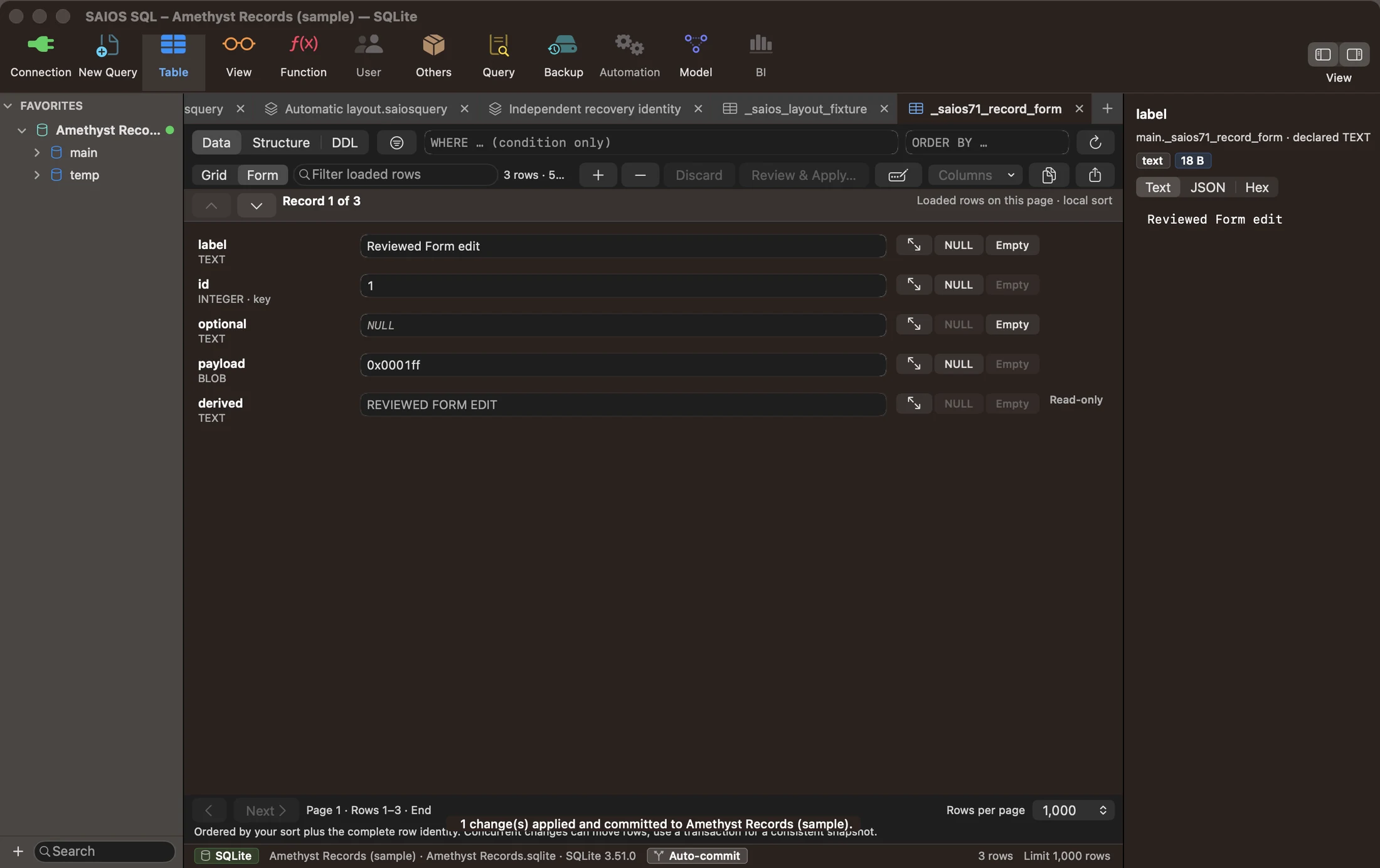
See one loaded record at a time, with clearly separate NULL and empty values.
Steps
- Open a table or view, keep Data selected, and choose Form beside Grid.
- Use the arrows, ⌘[ or ⌘], to move through loaded records.
- Edit a field, or use NULL and Empty beside it.
- Use the buttons beside a field for its value editor or related values.
- Choose Review & Apply… to write changes, or Discard to drop them.
What happens next
Form and Grid share the same staged edits. Press Esc to cancel the field you are editing.
Limits
- The arrows move only through rows loaded on this page. Use the page controls to load more.
- View data stays read-only.
- Generated fields, invalid text, truncated values and BLOBs over 64 KiB are read-only previews.
If something goes wrong
- Form is missing.
- It is offered in table and view Data tabs, not on query results.
- A field will not accept typing.
- It may be a read-only preview. Use its value-editor button to inspect it.
Design tables and views
Change structure through reviewed DDL.
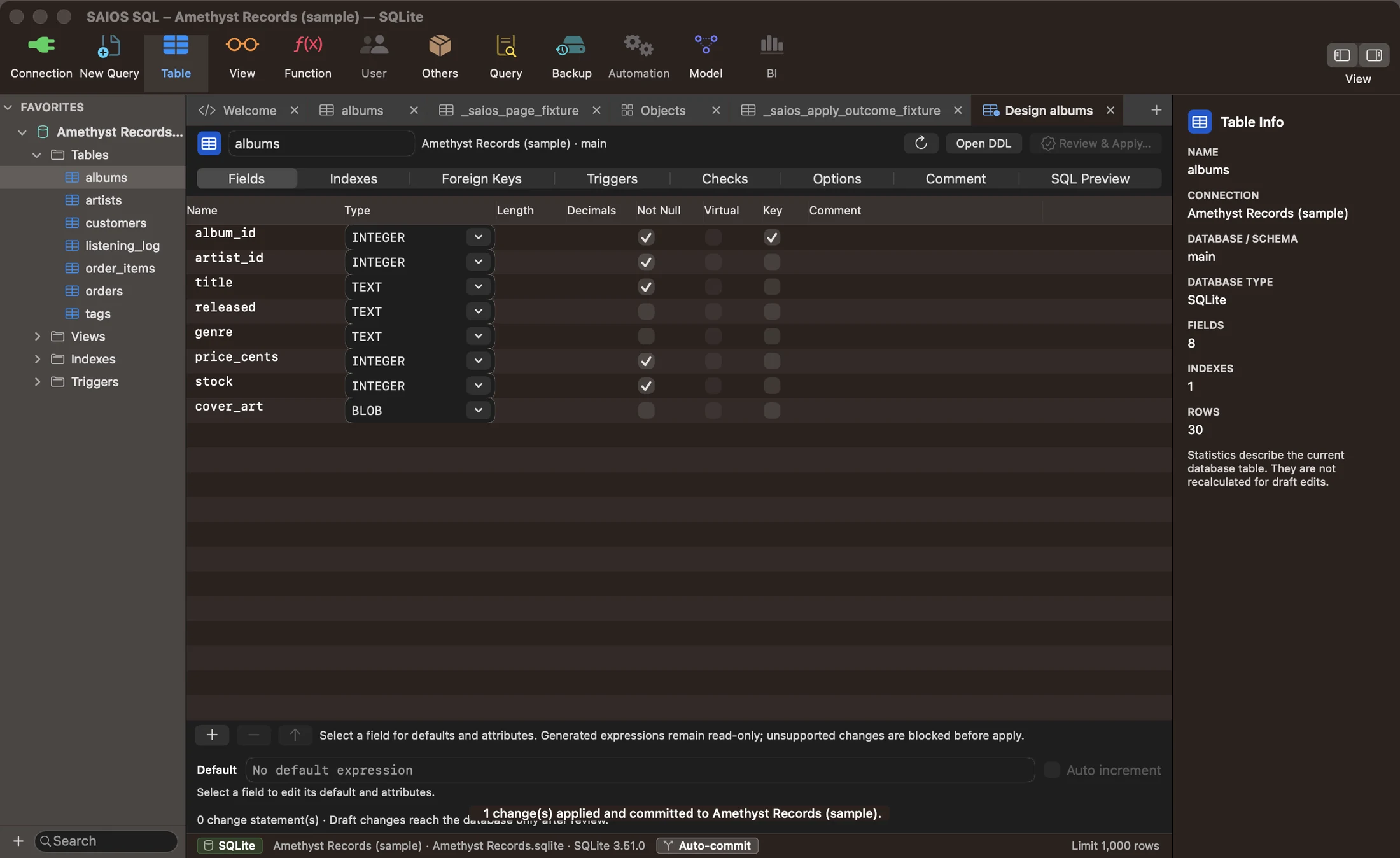
One draft covers fields, indexes, foreign keys, triggers, checks, options, the comment and generated SQL. Editing only changes the draft. The database changes when you confirm Review & Apply….
Steps
- Open a table: right-click it in the sidebar and choose Design Table…, or select it in Objects and use the Design icon. For a new table, choose File → New → New Table….
- For a new table, enter its name in the field at the top left. An existing table's name cannot be changed here.
- Choose a section from the bar under the name, or from Table → Section. All eight sections edit the same draft, so you can move between them freely.
- Check the status line at the bottom of the designer. It counts the planned statements, or explains what is blocking them.
- Open SQL Preview and read Changes.
- Choose Review & Apply… (⌘S), read the statements in the dialog, then choose Apply, or Cancel to keep editing.
Fields
Fields define the table's columns: name, type, size, nullability, key membership and comment. Select a row to edit its default and attributes in the strip below the grid.
- Use the add button (+) or Table → Add Field to add a field. It starts as
column_Nwith a text type. - Enter Name, then choose or type Type. The list suggests types for the connected engine, and you can type another.
- Set Length and Decimals if the type needs them, then Not Null and Key.
- Select the row to set Default, Auto increment and, on MySQL or MariaDB, Unsigned.
- Use the remove button (−) or Table → Remove Field to remove the selected field. Reordering with Move Field Up is for new tables only.
- Name
- Must be unique, ignoring case. On an existing table, editing a name plans a rename, not a drop and add, so the data stays.
- Type
- The engine's type name. Length and decimals are kept in their own columns. Declarations with other arguments, such as
ENUM('a','b'), stay whole in this cell and leave Length and Decimals unavailable. - Length
- A whole number, used as the length or the precision. Clearing it also clears Decimals.
- Decimals
- Needs a length first. Scale is accepted for DECIMAL, NUMERIC, NUMBER, FLOAT and DOUBLE.
- Not Null
- Ticked means the field refuses NULL. Adding a NOT NULL field without a default to a table with rows fails, and the review warns you.
- Virtual
- Read-only. It marks a generated column. That row cannot be edited here, because this designer does not edit generated expressions.
- Key
- Adds the field to the primary key and turns on Not Null. Tick several for a composite key.
- Comment
- Editable on PostgreSQL, MySQL and MariaDB. On other engines the cell is read-only.
- Default
- One SQL expression, used exactly as typed, so quote text yourself:
'pending', notpending. Comments and extra statements are refused. - Auto increment
- One per table. SQLite needs a single INTEGER PRIMARY KEY, MySQL and MariaDB need the field to come first in a key, and DuckDB does not offer it.
- Unsigned
- Shown only on MySQL and MariaDB, for numeric types.
- A new table starts with an
idprimary-key field. It is BIGINT, or INTEGER on SQLite, and auto-incrementing except on DuckDB. - Removing a field removes its data. The review marks that statement as destructive.
Indexes
Create, rename or remove secondary indexes. The primary key is set in Fields and is not listed here.
- Use the add button (+). A row appears named
idx_table_N, on the first field. - Enter Name, then list Fields as comma-separated column names, in index order.
- Tick Unique to refuse duplicate values.
- Select a row and use the remove button (−) to drop an index.
- Name
- Must be unique within the draft, ignoring case.
- Fields
- Existing column names only. Order matters, because an index on
artist_id, releasedserves searches onartist_idfirst. - Unique
- Creating the index fails if the table already holds duplicates.
- Editing an existing index is planned as a drop followed by a create. Renaming a field keeps its index references.
- SQLite's internal automatic indexes are not listed.
- Expression and partial indexes cannot be edited here. Change them with manual SQL.
Foreign Keys
Link fields in this table to a key in another table, with optional actions for parent deletes and updates.
- Use the add button (+). A row appears named
fk_table_N. - List the local Fields, comma-separated.
- Enter Reference Table and matching Reference Fields, in the same order and count. Enter Reference Schema if the parent is in another schema.
- Choose On Delete and On Update, or leave them empty for the server's default.
- Name
- The constraint name. Dropping a constraint on a server engine needs its real name, so an unnamed one needs manual SQL.
- Fields
- Existing columns of this table.
- Reference Schema
- Optional. SQLite cannot reference another attached database.
- Reference Table
- The parent table, entered by name. It is not checked against the catalog until the database runs the statement.
- Reference Fields
- Must match Fields in count and order.
- On Delete / On Update
- NO ACTION, RESTRICT, CASCADE, SET NULL or SET DEFAULT. MySQL and MariaDB refuse SET DEFAULT here.
- On MySQL and MariaDB, foreign keys need the Engine option set to InnoDB.
- On SQLite, a foreign-key change uses a reviewed table rebuild.
- DuckDB accepts foreign keys only when creating a table.
Triggers
List the table's triggers and edit each as one complete CREATE TRIGGER statement.
- Use the add button (+). A row appears named
trigger_N. - Enter Trigger Name.
- With the row selected, write the full statement in the editor below the grid. The SQL column only displays it.
- Check that the statement names the same trigger and this table.
- Select a row and use the remove button (−) to plan a drop.
- Trigger Name
- Must match the name in the statement and be unique in the draft.
- SQL
- Exactly one CREATE TRIGGER statement that targets this table. It runs verbatim, so the app does not check the logic inside it.
- Changing a trigger is planned as a drop followed by the new statement. The review marks the drop as destructive.
- Statements using a DEFINER or OR REPLACE need manual SQL.
- Editing is available on SQLite, PostgreSQL, MySQL and MariaDB. Other engines block trigger changes.
Checks
Add named CHECK constraints that each row must satisfy.
- Use the add button (+). A row appears named
check_N. - Enter a condition only, such as
price_cents >= 0, without the word CHECK. - Select a row and use the remove button (−) to plan a drop.
- Name
- The constraint name. Dropping a check on a server engine needs its real name.
- Condition
- One expression, with no comments, extra statements or top-level commas.
- Enforced
- Shows whether the server enforces the check. The box is editable only on MySQL and MariaDB, and turning enforcement off is blocked: use manual SQL for that.
- Adding a check to an existing table fails if current rows violate it.
- On SQLite, a check change uses a reviewed table rebuild. Existing CHECK constraints are not listed in this section, so read them in Current DDL, and a table that has them cannot be rebuilt here.
- DuckDB accepts checks only when creating a table.
Options
Storage settings for MySQL and MariaDB. On other engines this section is read-only.
- Open Options on a MySQL or MariaDB table.
- Enter Engine, Character set or Collation. Empty fields on a new table use the server default.
- Read the warning in the review, because these changes can rebuild or convert the whole table.
- Engine
- The storage engine, such as InnoDB. Set it explicitly on a new table that has foreign keys.
- Character set
- The table's default character set.
- Collation
- The table's default collation.
- Values must be plain server names, not SQL expressions.
- An existing value cannot be cleared. Enter its replacement instead.
Comment
A free-text description stored with the table, on engines that support it here.
- Open Comment and type the text.
- Check the label above the editor. It says whether the comment is staged or read-only.
- Comment
- Staged until Review & Apply…. Editable on PostgreSQL, MySQL and MariaDB. On other engines, existing metadata is shown read-only.
- This is separate from the field comments in Fields.
SQL Preview
See exactly what the draft would run, and compare it with the table's stored definition.
- Open SQL Preview and choose Changes to read the plan.
- Choose Current DDL to see the stored definition.
- Choose Open DDL at the top of the designer to copy the plan into a new SQL tab. Nothing runs there until you run it.
- Changes
- The generated statements. Lines starting
-- Cannot apply:or-- BLOCKED:explain what must be fixed, and-- ⚠︎marks a warning.-- No changes.means the draft matches the table. - Current DDL
- The definition supplied by the driver when the table was read. It does not change as you edit.
- Open DDL
- At the top of the designer. It includes warnings and blocked notes as comments, so you can adapt a blocked change by hand.
- Reload
- At the top of the designer. It reads the stored definition again, and if you have edits it asks first with Discard Draft and Reload.
- The right-hand Table Info pane shows the current table's statistics. They do not change with draft edits.
What each engine can change
How the app applies each change to an existing table. Blocked means the plan stops before anything runs, so the change needs manual SQL. Not offered means the control is unavailable. SQL Server, Oracle, Snowflake and ODBC are left out because this designer has not been tested on them.
| Change | SQLite | PostgreSQL | MySQL and MariaDB | DuckDB |
|---|---|---|---|---|
| Add or rename a field | ALTER TABLE | ALTER TABLE | ALTER TABLE | ALTER TABLE |
| Remove a field | ALTER TABLE, or rebuild if it is in a key or index | ALTER TABLE | ALTER TABLE | ALTER TABLE |
| Type, Not Null, default | Rebuild | ALTER COLUMN | MODIFY COLUMN | ALTER COLUMN |
| Primary key | Rebuild | Drop and add | Drop and add | Blocked |
| Auto increment on an existing field | Rebuild | Blocked | MODIFY COLUMN | Not offered |
| Indexes | Yes | Yes | Yes | Yes |
| Foreign keys | Rebuild | Drop and add | Drop and add, InnoDB only | Blocked |
| Checks | Rebuild | Drop and add | Drop and add | Blocked |
| Triggers | Yes | Yes | Yes | Blocked |
| Options | Not offered | Not offered | Yes | Not offered |
| Comments | Not offered | Yes | Yes | Not offered |
| If a statement fails | One transaction, all rolled back | One transaction, all rolled back | Stops; earlier statements stay applied | One transaction, all rolled back |
What happens next
Before writing, the app reads the table again and stops if its definition changed since you loaded it. For a new table, it stops if the name is already taken. After success it reloads the table. Drafts are protected by local recovery, which never applies anything.
Limits
- Review & Apply… needs a connected session with write access and auto-commit on. Commit or roll back your own transaction first.
- Renaming or moving an existing table is blocked here. Use manual SQL.
- A SQLite rebuild copies rows to a new table, drops the old one and renames the copy, in one transaction. It is blocked for tables with CHECK constraints, collations, WITHOUT ROWID or STRICT storage, generated columns, descending keys, inline UNIQUE constraints, partial or expression indexes, conflict clauses or deferred foreign keys, and when triggers may reference renamed or removed fields.
- In the sample database, only
artistsandlistening_logcan be rebuilt.albums,ordersandorder_itemshave CHECK constraints,customershas an inline UNIQUE constraint andtagsuses WITHOUT ROWID. Renames, new fields and index changes do not need a rebuild, so they work on all seven. - Tested with real applied changes on MySQL, MariaDB and SQLite, with native review and apply on SQLite and MariaDB. PostgreSQL and DuckDB are covered by generated-SQL or definition-comparison checks, not by the same applied-change testing.
- SQL Server, Oracle and Snowflake have not been tested with this designer.
If something goes wrong
- Review & Apply… is disabled.
- Read the status line at the bottom of the designer, or
-- Cannot apply:and-- BLOCKED:in SQL Preview. Common reasons are no changes, a read-only connection, a refused value or a change the designer cannot make. - A change is blocked and says manual SQL is needed.
- The table uses something the designer cannot represent. Use Open DDL as a starting point and write the change in a query tab.
- Apply reports that the definition changed.
- Another client changed the table first, and nothing was applied. Inspect Current DDL, then Reload and make the change again.
- A MySQL or MariaDB apply stopped partway.
- Earlier statements remain applied. Inspect the table and Reload before trying again.
- The app says the session changed.
- The connection reconnected after the table loaded. Choose Reload to read it on the current session.
- Length will not accept a value.
- It needs a whole number. Decimals also needs a length first. The refused text stays visible until you correct it.
Version 0.8.15 brings field insertion, compact editing tools, engine-specific attributes and clearer result-grid accessibility descriptions.
Steps
- Install the signed 0.8.15 release to use these tools.
- Use the field toolbar above Fields for insertion, primary keys and ordering.
- In Query and View Builder, select an output and use ⌥⌘↑ or ⌥⌘↓ while Outputs or SELECT is visible.
Insert Field
Insert Field, a compact field toolbar and engine-specific Character set / Collation controls.
- The field tools sit above the grid: Add Field, Insert Field, Remove Field, Primary Key, Move Field Up and Move Field Down. In other sections only Add and Remove remain, and they act on that section's rows.
- Select a field and choose Insert Field (or Table → Insert Field) to add a uniquely named field before it in a new table. Add Field still appends at the end.
- Primary Key toggles the selected field's key, exactly like its Key checkbox; adding it also makes the field Not Null.
- Move Field Up and Move Field Down (⌥⌘↑ and ⌥⌘↓) reorder a new table's fields. Existing tables keep their stored field order.
- On MySQL and MariaDB, select a character field to set its Character set and Collation. Leave them empty to use the table default.
- Insert Field
- New table drafts only. Adds a
column_Nfield before the selected field, keeping every other field and its attributes. - Primary Key
- Shows and toggles whether the selected field is in the primary key. Unavailable for generated columns and while busy or read-only.
- Character set / Collation
- MySQL and MariaDB character types only (CHAR, VARCHAR, TEXT, ENUM, SET). The server checks that the pair is compatible when you apply; a refused statement does not apply that statement, but earlier statements in a MySQL or MariaDB multi-statement plan can remain applied. Family names such as MariaDB's
uca1400_ai_ciare accepted. - Auto increment
- MySQL and MariaDB: integer fields without a default. PostgreSQL: a new smallint, integer or bigint field becomes GENERATED BY DEFAULT AS IDENTITY; existing identity columns stay read-only. SQLite: only the single INTEGER PRIMARY KEY. DuckDB: not available; use a sequence default in manual SQL. In an editable draft, a set flag can be cleared to correct an invalid combination. Generated and existing PostgreSQL identity columns remain read-only. The designer supports one auto-increment field per table.
- Unsigned
- MySQL and MariaDB. Available for integer types. MySQL 8 deprecates new UNSIGNED on DECIMAL, FLOAT and DOUBLE, so it is kept but not added there; MariaDB allows it. ZEROFILL implies UNSIGNED, so both are kept as typed; edit the type text to change them.
- Every tool explains in its help tag why it is unavailable: no field selected, another section, read-only connection, loading, applying, or an existing table.
- If a Length or Decimals value is refused, finish correcting it first. Insert, moves and the Auto increment and Unsigned checkboxes wait and keep your text.
What happens next
Review SQL before applying a database change.
Limits
- These improvements do not add new engines or complete all planned editing features.
- New builder shortcuts and disabled explanations preserve the existing Build, Build and Run, Keep Draft and Cancel behavior.
If something goes wrong
- The documented new tools are absent.
- Check About SAIOS SQL. These tools require version 0.8.15; 0.8.14 does not include them.
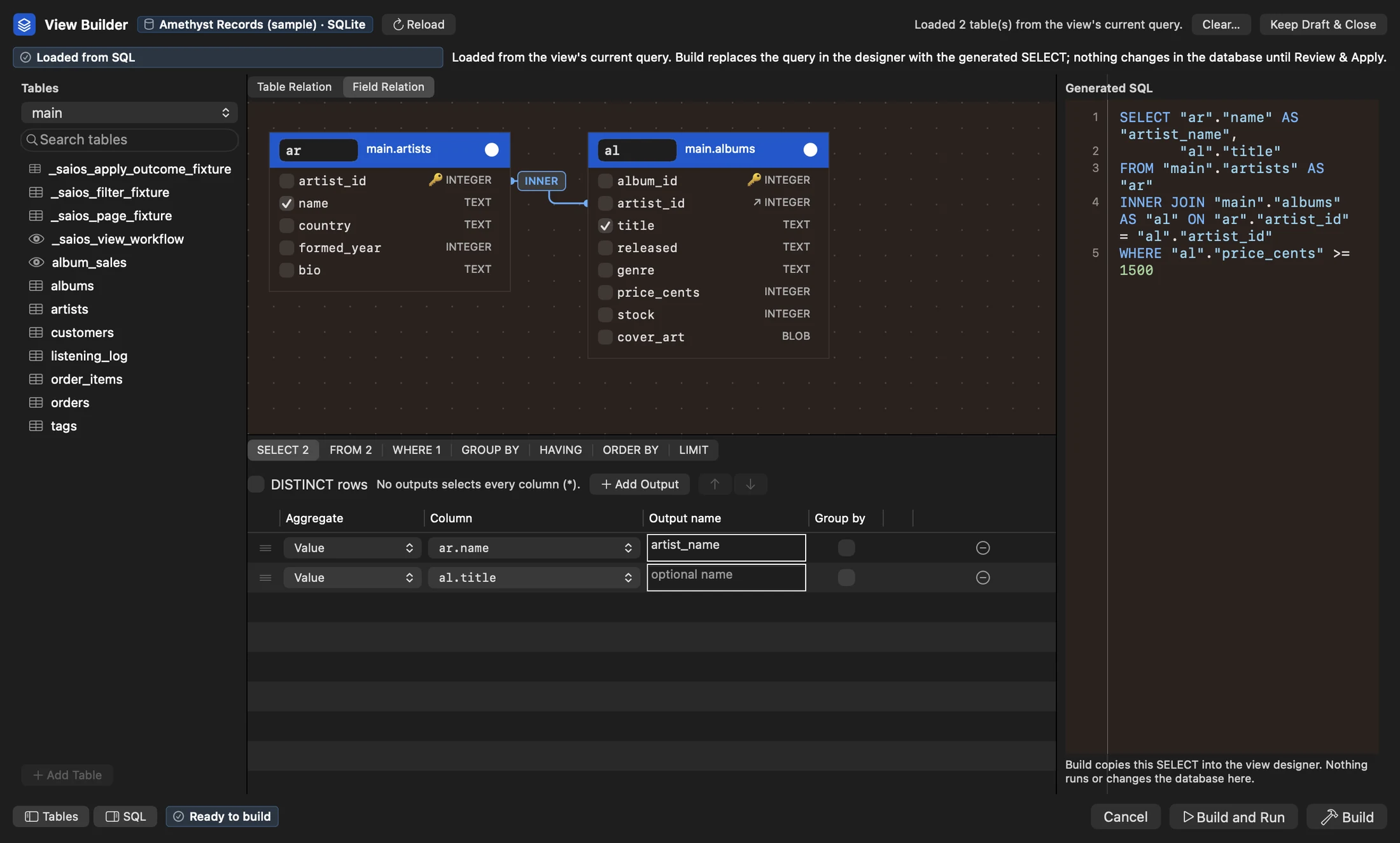
Edit a view's SQL directly or through the View Builder, preview it, then apply reviewed DDL.
Steps
- Choose View in the ribbon, select an ordinary view and use the Design icon. Or right-click the view in the sidebar and choose Design View…. For a new one, choose File → New → New View….
- Edit the SQL. Use Preview to see rows and Format to tidy it.
- Choose Query Builder… to open the View Builder, with tables on the left, the canvas and clauses in the center and SQL on the right.
- Use SELECT, FROM, WHERE, GROUP BY, HAVING, ORDER BY and LIMIT to shape the query. Tables and SQL hide those panes for more room.
- Choose Build (⌘↩) to move the SELECT into the designer, or Build and Run (⇧⌘↩) to preview it too. Cancel discards the sheet and keeps your SQL.
- Choose Review & Apply… (⌘S) to save the view.
What happens next
Keep Draft & Close leaves an unbuilt draft with the designer. Resume Builder reopens it, and Discard Builder Draft removes it.
Limits
- Supported for ordinary views on SQLite, PostgreSQL, MySQL, MariaDB and DuckDB. Materialized views and unsupported attributes stay blocked.
- SQL the builder cannot represent stays intact in the editor, with an explicit option to start a fresh visual draft.
- A LIMIT in the builder becomes part of the view definition.
- Concurrent DDL from another connection can race the final check on server engines.
- View designer drafts are local recovery, not portable files.
If something goes wrong
- The app says the query can't be edited in the visual builder.
- Choose Keep Editing SQL, or Start Empty Visual Draft… if you want to rebuild it.
- Build is blocked.
- The connection, parent query or a source may have changed. Use Reload, and see the View Builder section of Recover your work.
Visual queries
Build a SELECT from table cards, joins and typed conditions, then save it as a document.
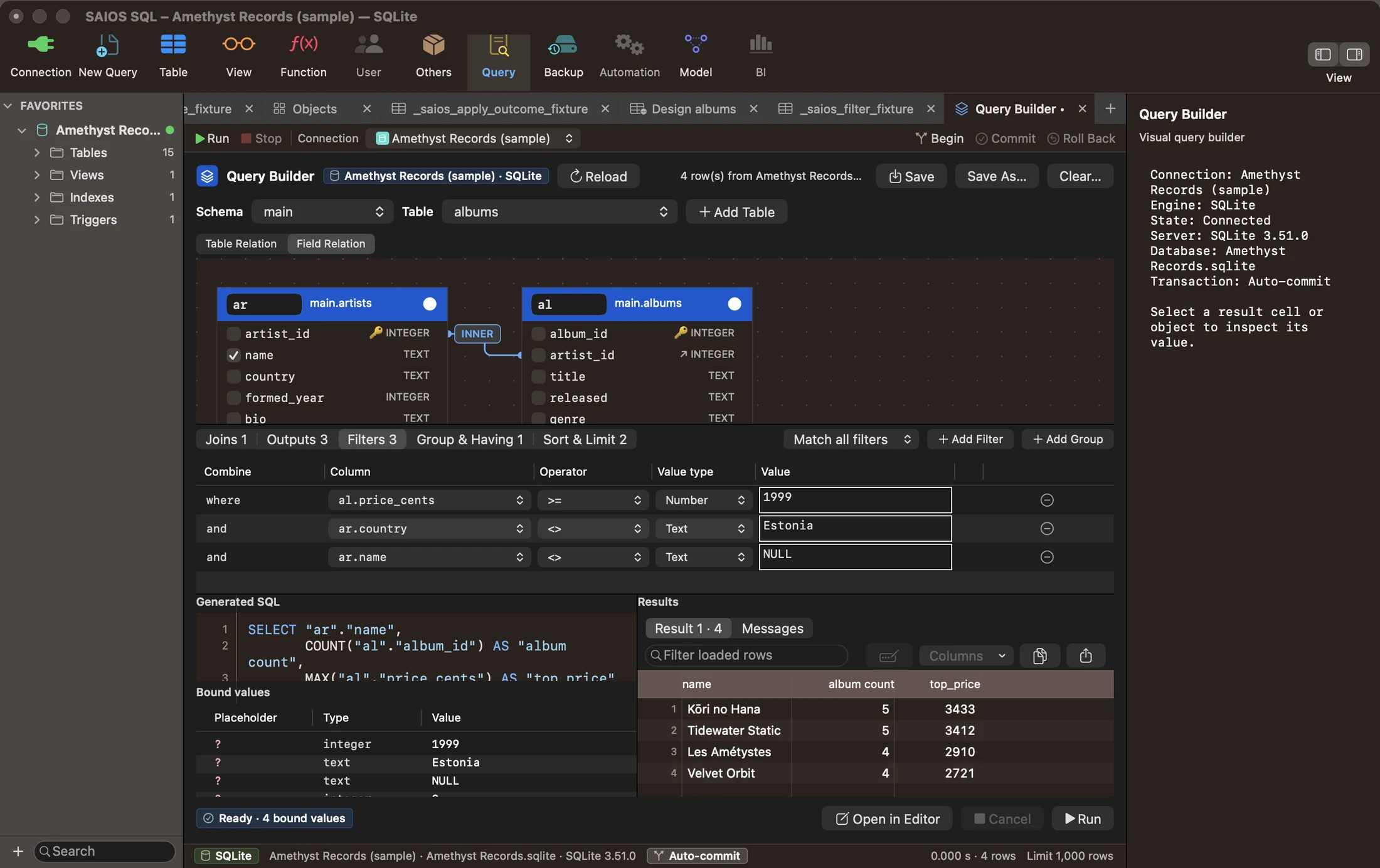
The Query Builder turns table cards and join rows into one validated SELECT.
Steps
- Press ⇧⌘B or choose Tools → Visual Query Builder. Check the connection, choosing Connect if needed.
- Choose a Schema and Table, then Add Table. Add a table twice for a self-join; each use gets its own alias.
- Edit the alias in a table card's header to rename it. Dependent clauses follow the new name.
- Open Joins. Choose the join type and column pairs, and use Add Column Pair for a composite key.
- Above the canvas, choose Table Relation or Field Relation. Click a relationship label to jump to its join row.
- Drag cards by their headers. Lines update as you move them or scroll their fields.
What happens next
The SQL pane updates as you work. Nothing runs until you choose Run (⌘↩). Open in Editor creates a separate SQL document with values written as literals, and it does not run either.
Limits
- Joins use equality column pairs, plus CROSS joins. Non-equality joins are not supported.
- MySQL and MariaDB refuse FULL JOIN.
- Dragging one column onto another to create a join is not available.
- Moving a card changes its saved position but not the query.
- Routing is bounded: overlapping cards and dense graphs can still hide a line or label. Move cards apart if so.
If something goes wrong
- Run is unavailable.
- Read the issues list. Incomplete joins and invalid references block Run on purpose.
- The table list is empty.
- Choose Connect, then Reload to read metadata.
- The information pane says No connection although rows came back.
- Upgrade to 0.8.14 or later. Earlier builds could leave the information pane showing an old connection state. The pane now follows the active tab. Connection-state updates preserve a selected cell; choosing a different connection returns to the connection summary.
Outputs become the SELECT list. The order you set is the column order of the result.
Steps
- Tick fields on a table card, or use Add Output on the Outputs section.
- Choose a Column, an optional Aggregate and an Output name.
- Select a row and use Move output up or Move output down beside Add Output.
- Or drag the grip at the left of a row to the insertion line between rows.
What happens next
The whole output moves together, the selection follows it and the SQL preview updates. Reordering never runs the query.
Limits
- Aggregates are COUNT, SUM, AVG, MIN, MAX, COUNT DISTINCT and COUNT(*). Arbitrary SQL expressions are not supported.
- Dragging works within one grid only.
- Drag behavior was tested through native drop handling. Physical trackpad dragging and VoiceOver have not been fully accepted, so use the move buttons if dragging misbehaves.
- Version 0.8.15: ⌥⌘↑ and ⌥⌘↓ move the selected output in both the Query Builder and the View Builder while Outputs or SELECT is shown, and the move buttons explain why they are unavailable.
If something goes wrong
- A drop is refused.
- Finish editing a table alias, filter value or limit with Return or Tab, then drag again. Your text is kept.
- The move buttons are disabled.
- Select a row. A row at the top or bottom can only move one way, and a running query blocks moves.
Filters compile to bound parameters. Groups add explicit parentheses for AND and OR.
Steps
- Open Filters and choose Add Filter. Pick the column, Operator, Value type and Value.
- Use Match all filters or Match any filter at the top level.
- Choose Add Group for a parenthesized group, then All of these (AND) or Any of these (OR).
- Use Add Condition and Add Group inside the group. The Combine column shows connectors and boundaries.
- Use Ungroup to remove parentheses, or Remove to delete a group and its conditions. Check the SQL afterward, because Ungroup can change the meaning.
SELECT title, genre, price_cents
FROM albums
WHERE (genre = 'Ambient' OR genre = 'Drone')
  AND price_cents >= 2000
ORDER BY price_cents DESC;
Put both genres in an Any group, and keep the price condition outside it with Match all filters selected.
What happens next
Values keep the type you chose: text 007 stays text, and text NULL is a four-letter string. Bound values lists what will be sent.
Limits
- Up to four nested levels and 64 groups per WHERE or HAVING clause.
- Groups cover consecutive conditions in displayed order.
- Imported mixed AND/OR clauses need explicit parentheses.
- An empty group stays visible and blocks execution until you complete or remove it.
If something goes wrong
- Run is blocked after adding a group.
- Fill in or remove its unfinished condition.
- A narrow window hides group actions.
- Scroll the condition grid sideways.
Summarize rows, filter the summaries and control the order and size of the result.
Steps
- Set an Aggregate on one or more outputs.
- Open Group & Having. Use Add Grouping for each plain output, or mark Group by on its row.
- Use Add Condition to filter aggregates with HAVING. Add Group works as it does for filters.
- Open Sort & Limit and use Add Sort, then choose Direction.
- Tick DISTINCT rows if needed, and set Limit. An empty Limit omits the SQL LIMIT clause, but the app's Row limit and memory limit still apply to the result.
SELECT al.genre, COUNT(*) AS lines, SUM(oi.quantity) AS units
FROM albums AS al
JOIN order_items AS oi ON oi.album_id = al.album_id
GROUP BY al.genre
HAVING COUNT(*) > 1
ORDER BY units DESC
LIMIT 10;
What happens next
Choose Run (⌘↩). Results appear with the column order set in Outputs, and they fill the pane.
Limits
- A new Query Builder draft starts with a limit of 100.
- With Limit empty, the query has no LIMIT clause, but Run still stops at Row limit (1,000 rows by default) or Result memory (MB), and the result is marked as truncated. Change them in Settings… → Results.
- Plain outputs of a grouped query must be grouped.
- Query runs from the builder are not added to history.
If something goes wrong
- The issues list says a column must be grouped.
- Mark it Group by, or give it an aggregate.
- Fewer rows came back than expected.
- Check Limit and DISTINCT rows.
A .saiosquery document keeps the whole draft, without results or credentials.
Steps
- In the Query Builder, choose Save (⌘S) or Save As… (⇧⌘S).
- To reopen, press ⌘O and choose the file. It opens in its own tab showing Metadata not read.
- Choose Connect if needed, then Reload to check the tables against current metadata.
- Choose Run when you are ready.
What happens next
Opening, restoring, saving and rearranging never run SQL. If the file changed on disk, Save offers Cancel, Save As… or Replace File, and a removed file offers Re-create File.
Limits
- Documents hold the query model, typed values, output order, card positions and an optional connection reference, with no results, passwords or profiles.
- Limit of 2 MiB per document and 128 tables.
- Grouped queries and non-default relation settings use newer formats, and older app versions refuse them rather than flattening them.
- Automated checks cover exact-path open, save, reopen and explicit execution of a two-output sample query. The native Open dialog and repeated-reopen resize walkthrough remain unverified.
- View Designer drafts cannot be saved as portable files.
If something goes wrong
- The tab shows Connection missing.
- The saved reference does not match a profile on this Mac. Choose a connection, then choose Reload.
- A file will not open.
- It may be from a newer version, damaged, a symlink or over 2 MiB. Use a current build or the original file.
Move data
Import, export, back up, restore, compare and transfer, each within its stated scope.
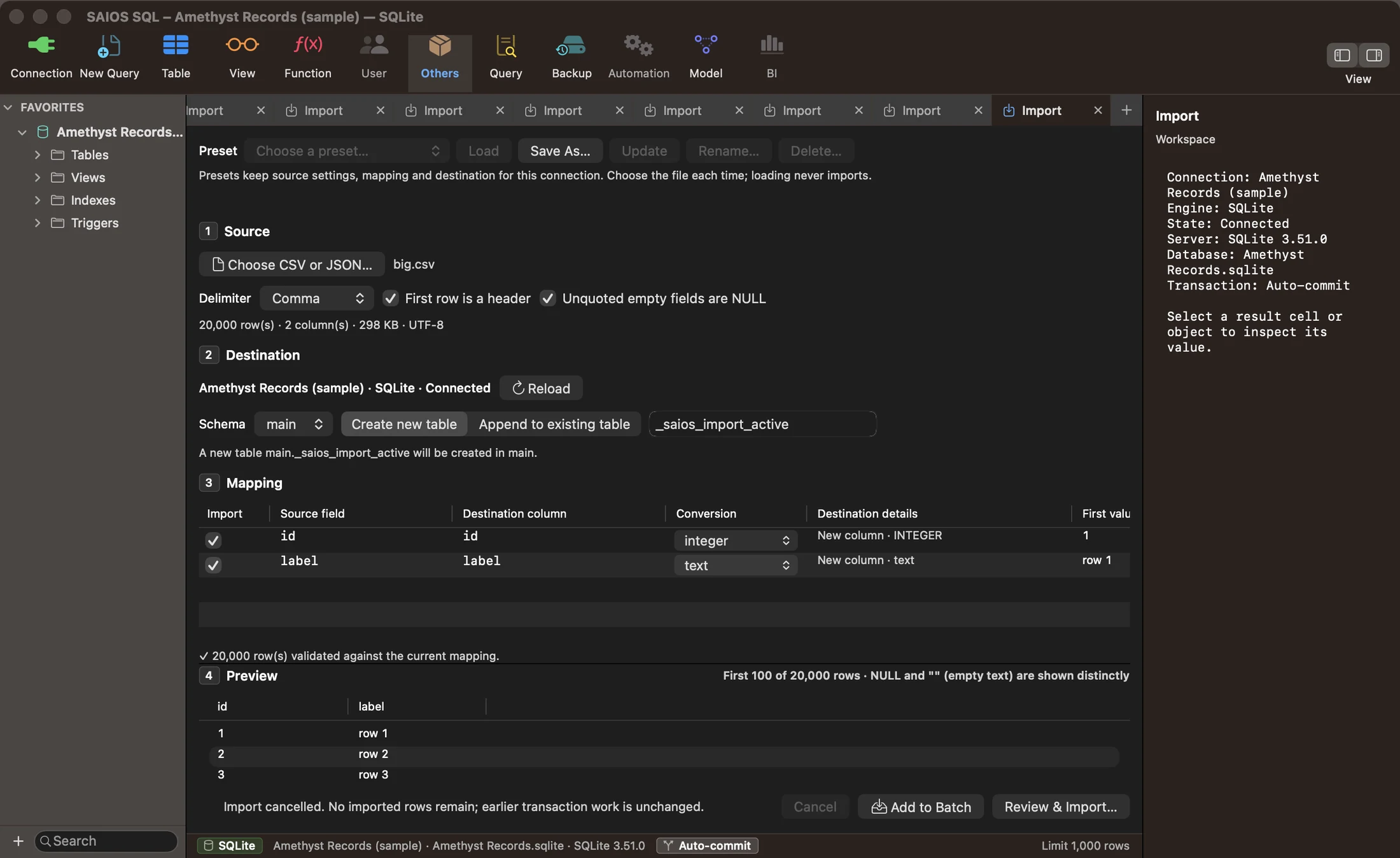
Choose one file, map it to a new or existing table, inspect the first rows and confirm a frozen plan.
Steps
- Press ⇧⌘I, or choose Tools → Import Data…. In Objects, the Import icon opens it with the selected table.
- Choose Choose CSV or JSON…. JSON must be an array of objects. Check Delimiter and header options.
- Choose the connection and Schema, then Create new table or Append to existing table.
- Set each field's destination and conversion, or Skip it. Inspect Preview (first 100 rows).
- Choose Review & Import…, read the destination, mapping and transaction behavior, then choose Import.
What happens next
Rows import in one transaction with visible progress. Cancel stays busy through rollback. Inside your own transaction, supported engines use a savepoint.
Limits
- 64 MiB, one million rows, 1,024 fields and two million rectangular cells per file.
- To run a SQL script, use File → Open… instead. Other source formats are not supported.
- Tested with real create and append on SQLite, DuckDB, PostgreSQL, MySQL and MariaDB.
- On engines where CREATE TABLE commits separately, a failed new-table import can leave an empty table.
- Import drafts are not part of recovery.
If something goes wrong
- Review & Import… refuses a value.
- Conversions are strict. Correct the source, or choose a text destination.
- An import failed.
- Its rows were rolled back when possible. Check the result message, and look for an empty new table on MySQL-family engines.
A preset remembers parsing options and the mapping for repeat imports of files with the same shape.
Steps
- Set up an import, then in Preset choose Save As… and name it.
- Next time, choose the new file first, select the preset and choose Load.
- Check the preview, then choose Review & Import….
- Use Update, Rename… or Delete… to maintain presets.
What happens next
Loading re-reads your chosen file and current destination metadata, then fills in the mapping. It never imports, connects or writes.
Limits
- Field names, order and count must match exactly. Different rows are expected.
- A changed destination column or file kind refuses the load and leaves your draft unchanged.
- Presets belong to one connection profile and endpoint. Up to 200 presets, 2 MiB in total and 120-character names.
- Presets hold no file path, rows, SQL or passwords, and they are local settings rather than portable files.
If something goes wrong
- Load is refused.
- Read the reason. Correct the file, or map the changed structure manually and save another preset.
- The preset list is empty on another connection.
- Each connection target has its own list.
Queue prepared imports on one connection, review them together and run them in order.
Steps
- Prepare a file in Import Data…, then choose Add to Batch. This copies its rows, mapping and destination.
- Prepare the next file and add it the same way.
- Open the Import Batch tab, or choose Tools → Import Batch…, and use Move Up, Move Down or Remove.
- Choose Review & Import…, check every file, then confirm Import Batch.
What happens next
All destinations are checked before the first write. Each file then runs in its own transaction, in order. The first failure or cancel stops the queue: finished files stay committed, the current file rolls back when possible, and later files are skipped.
Limits
- 20 files, two million cells and 64 MiB of values in total.
- One connected session, and each destination table only once.
- There is no whole-batch atomicity, scheduling or automatic retry.
- The queue is temporary and is not recovered. Keep reusable mappings as presets.
- Changes to a source file after Add to Batch are not picked up.
If something goes wrong
- The batch refuses to run.
- Commit or roll back your own transaction first, and check for duplicate destinations.
- Some files were skipped.
- An attempted queue cannot run again. Clear the results and prepare a new queue with the remaining files.
This panel exports the current table page or loaded result. It does not fetch every row in the database.
Steps
- Run a query or open a table page.
- Click the export icon in the results toolbar, or press ⇧⌘E.
- Tick columns, review the first five loaded rows, and choose Format, NULL as and Binary data.
- Choose a destination. Watch progress, and cancel if needed.
- For a table you have not opened, use the Export icon in Objects, choose Loaded Preview, read up to 10,000 rows and continue from there.
What happens next
The file replaces its destination only when complete. Cancel or failure keeps any earlier file.
Limits
- Formats are CSV, tab-separated, JSON, SQL INSERT statements and Markdown table.
- The result is limited by the row, cell and memory limits, and truncated values are identified.
- Export covers all loaded columns unless you untick them, including those hidden in the grid.
- For every row, use Entire Tables.
If something goes wrong
- The file has fewer rows than the table.
- That is this panel's scope. Use Entire Tables.
- JSON export is refused.
- Duplicate column names cannot be represented. Add aliases in the query.
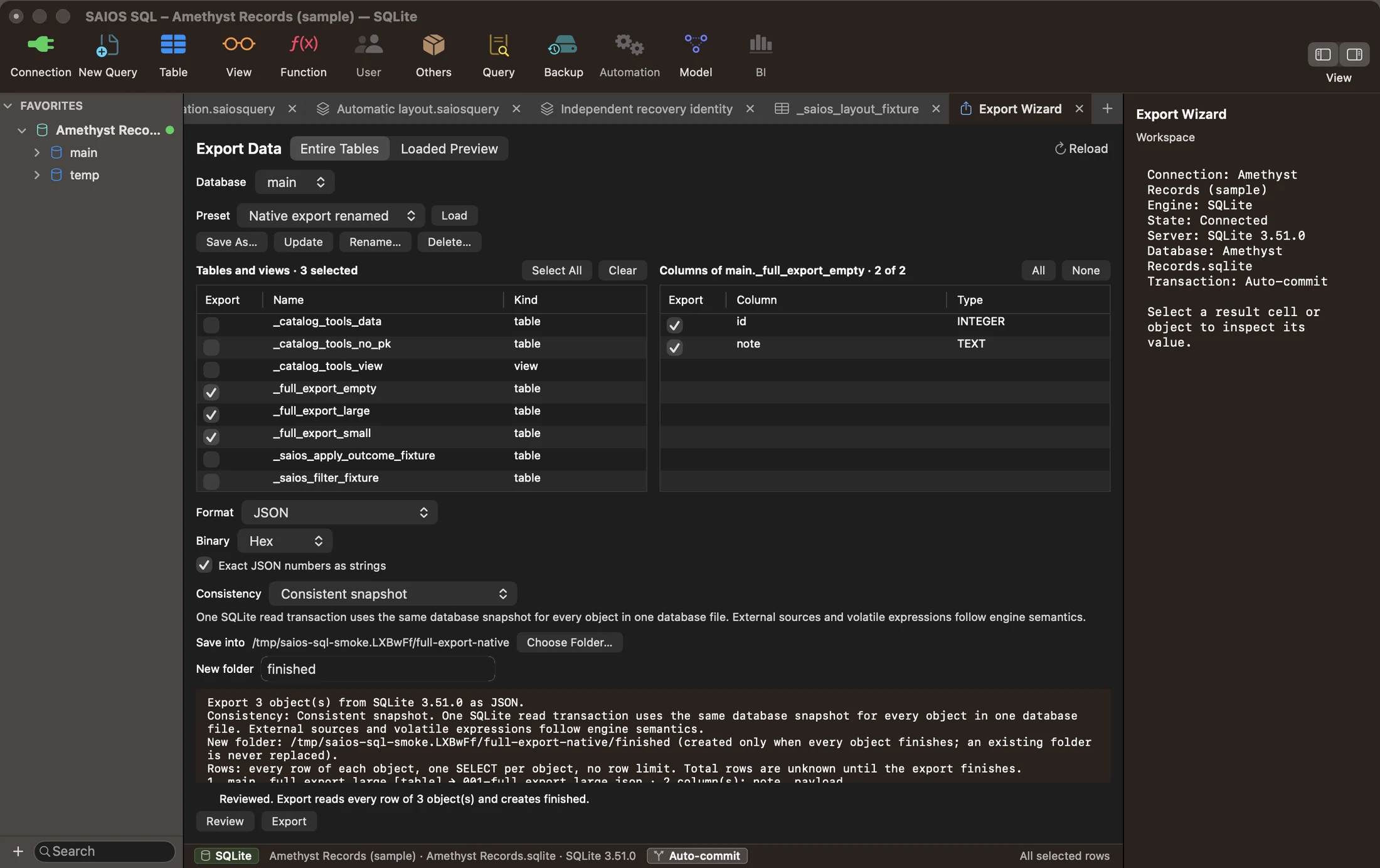
Stream every row of one or many tables or views into a new folder, with a manifest of counts and checksums.
Steps
- Open Objects and click the Export icon. Keep Entire Tables selected.
- Tick Tables and views and their Columns.
- Choose Format and Consistency.
- Choose Choose Folder… and enter a New folder name, then choose Review.
- Check objects, columns and files, then choose Export. Use Cancel Export to stop.
- Choose Show in Finder when it finishes.
What happens next
The new folder appears only when every object and snapshot cleanup finish. Each object gets a generated filename, and manifest.json maps names and records counts and checksums.
Limits
- Up to 500 objects per job. Any value over 16 MiB fails the whole job rather than exporting a prefix.
- Consistent snapshot is available on the five verified engines. MySQL and MariaDB need proven InnoDB base tables.
- Otherwise choose Best effort (no shared snapshot), where related tables may reflect different commits.
- SQL INSERT output is data only, with no CREATE TABLE. It is not a backup.
- Generic ODBC cannot stream entire tables, and export refuses to run inside an open transaction.
- Avoid concurrent schema changes during a job.
If something goes wrong
- The app says a consistent snapshot cannot be promised.
- A view or non-InnoDB table is included. Remove it, or choose best effort deliberately.
- A session-state error appears.
- Commit or roll back your own transaction, then review again.
- A column is missing after loading a preset.
- The review reports missing objects and columns. Update your selection.
Make a verified package of a SQLite main database, and restore it into a new file.
Steps
- Connect the SQLite file and click Backup in the ribbon, or choose Tools → Back Up Database….
- Choose Choose Folder…, enter a New package name, then choose Review.
- Choose Back Up. Use Cancel to stop, and Show in Finder to see the package.
- To restore, choose Tools → Restore from Backup… or the Restore mode.
- Choose Choose Package…, a folder and a New file name, then Review and Restore.
What happens next
Only a verified package appears, holding database.sqlite and manifest.json. Restore verifies a private copy, then publishes a new file. Add that file as a new connection to inspect it.
Limits
- Covers the entire main database, including committed WAL rows. Attached databases and the temp schema are excluded.
- Existing files are never replaced, and no SQL from the package runs.
- Restore needs no connection. Backup refuses to run during an open transaction.
- DuckDB backup is not available.
If something goes wrong
- Back Up is unavailable.
- Choose a new package name, review again, and end any open transaction. Any change after Review requires a new Review.
- Restore says the package is not restorable.
- The package failed a file-set, checksum or integrity check. Use another copy. Nothing was written.
Package InnoDB tables and data with your own vendor tools, and restore into a new database through a temporary restricted login. This is not a complete server backup.
Steps
- Connect the source and open Backup. Choose the Database.
- Choose Choose Tools Folder… and pick the folder holding matching
mysqldumpandmysql, ormariadb-dumpandmariadb. - Choose Choose Folder…, enter a New package name, then Review and Back Up.
- To restore, connect the target and choose Tools → Restore from Backup….
- Choose the package and tools, and enter a New database name of ASCII letters and digits starting with a letter. Then choose Review and Restore.
What happens next
A package appears only after the dump, inventory checks and checksum pass. Restore imports through a temporary login limited to the new database, verifies the result, then removes the login.
Limits
- Excludes views, triggers, routines, events, users, grants and server state.
- Tools are not bundled. Tested with MySQL 8.4.10 and MariaDB 11.4.13; other versions are labeled untested.
- Source tables must be InnoDB. A direct database or global SELECT grant is needed, and unverified role-only access or MySQL partial revokes refuse.
- SSH, client identities, TLS-name overrides and MariaDB require or verify-CA-only are unavailable for these jobs.
- Restore needs authority to create a database and login. Existing databases are preserved.
- A crash or force quit can leave private temporary files and server objects. Nothing reconnects or cleans up automatically.
If something goes wrong
- The tools are refused.
- Choose tools matching the server's family and at or above the supported minimum version.
- Review refuses a table.
- Read the reason. Storage engines, cross-database foreign keys and some table types are refused rather than backed up incompletely.
- Cleanup is reported as uncertain.
- The result lists remaining objects. Have an administrator review them.
Package one schema's ordinary tables, data and owned sequences with your own pg_dump, and restore into a new database. This is not a complete database backup.
Steps
- Connect the source and open Backup. Choose the Schema.
- Choose Choose Tools Folder… and pick the folder holding
pg_dumpandpg_restore. - Choose Choose Folder…, enter a New package name, then Review and Back Up.
- To restore, connect the target, choose Tools → Restore from Backup…, and choose the package and tools.
- Enter a New database name of ASCII letters and digits, at most 63 bytes, then choose Review and Restore.
What happens next
Table data and verification counts share one exported read-only snapshot. Restore checks the package offline, then imports through a temporary login limited to the new database.
Limits
- Excludes views, routines, triggers, custom types and dependencies, other schemas, grants and server objects.
- Servers 15–17 and tool majors 16–17 are accepted, but only tools 17.11 have been tested. PostgreSQL 18 tools are not supported.
- Sequence values can include later advances.
- SSH is unavailable for these jobs, and certificate settings that cannot be honored refuse.
- With Prefer TLS, password authentication is refused unless the connection explicitly allows plaintext passwords. Use Require or a Verify mode.
- Restore needs database and login creation authority. A crash can leave objects for an administrator to review.
If something goes wrong
- The job refuses password authentication.
- Change the connection's mode to Require or a Verify mode, then review again.
- A table is refused.
- It uses a type or dependency outside this package's scope. Export it instead, or use your own vendor tools.
Compare table structures between two connections and review generated migration DDL for the target.
Steps
- Choose Tools → Schema Compare.
- Choose Source and Target connections and schemas.
- Turn on Include drops (objects only in the target) only if you want drops planned.
- Choose Compare, then read the differences and the generated script.
- Choose Open Script in Editor to work with it yourself, or Review & Apply to Target….
What happens next
The plan binds to that target and session. Changing any input requires comparing again. After applying, the comparison runs again.
Limits
- Covers portable columns, defaults, nullability, primary keys and simple indexes.
- Target triggers, foreign keys, CHECKs, comments, storage settings and identity attributes are left alone, outside this scope.
- Across engines, types are mapped and engine-specific defaults are dropped.
- Unsupported rebuilds are blocked before anything changes.
If something goes wrong
- Review & Apply to Target… is disabled.
- There may be no statements to apply, or an input changed. Choose Compare again.
- A failure stopped partway.
- The message says whether nothing was applied or how many statements ran. Engines without transactional DDL can stop partway.
Copy rows one way between two connections, with optional table creation and a batch-by-batch log.
Steps
- Choose Tools → Data Transfer.
- Choose the Source, then tick tables under Tables to copy.
- Choose the Target. Keep Create tables in the target (types mapped) on if the tables do not exist yet.
- Set Batch rows, then choose Start Transfer. Choose Cancel to stop after the current batch.
What happens next
Each batch commits in its own target transaction. If one fails it rolls back, and the log shows how many rows were committed.
Limits
- One-way only. There is no bidirectional sync.
- Copies stored base values. Triggers, policies, identity generators and storage settings are not cloned.
- Tested from SQLite to DuckDB and PostgreSQL, and from MySQL or MariaDB to SQLite, DuckDB, PostgreSQL and the same engine. Other routes are untested.
- Decimal conversions depend on target precision.
- Running a transfer again starts from the first row, which can duplicate rows or hit key conflicts. Check the target first.
If something goes wrong
- The app says the source and target are the same schema.
- Choose a different target schema or connection.
- The target is read-only.
- Choose a profile with write access.
List sessions on PostgreSQL, MySQL and MariaDB, and cancel or terminate one after reviewing the exact command.
Steps
- Choose Tools → Activity Monitor, or Others in the ribbon.
- Choose the server and Refresh. Tick Refresh every 5 s for live updates.
- Read Session, User, Database, State, Duration, Client and Query.
- Select a session and choose Cancel Query… or Terminate Session…. Review the statement shown, then confirm.
What happens next
Cancel interrupts the query and keeps the session. Terminate ends the session, and the server rolls back its open transaction.
Limits
- Not available for SQLite, DuckDB or ODBC.
- Session listing has been tested on PostgreSQL 17.11. The cancel and terminate actions are not covered by automated tests.
- You need the server privileges for what you ask. Your own session is protected from these actions.
If something goes wrong
- The server refused the action.
- Your login lacks that privilege. Ask an administrator.
- The tab says it is not available.
- That engine does not support session activity in SAIOS SQL.
SQL Assistant
Draft, explain and fix SQL with OpenAI or Claude, using your own account.
Connect the SQL Assistant to your own OpenAI key or your installed Claude Code sign-in. Opening the assistant sends nothing.
Steps
- Choose Tools → SQL Assistant… (⌃⌘A), or Assistant in a query toolbar, then Provider Settings.
- For OpenAI, choose Choose Configuration File… and select a private local file containing your own
OPENAI_API_KEY. - For Claude, choose Find Installed CLI or Choose Claude CLI…. Sign in through Claude Code itself.
- Choose Check Configuration for a local check. Choose Send Test Request only if you want to send the disclosed test prompt to the model.
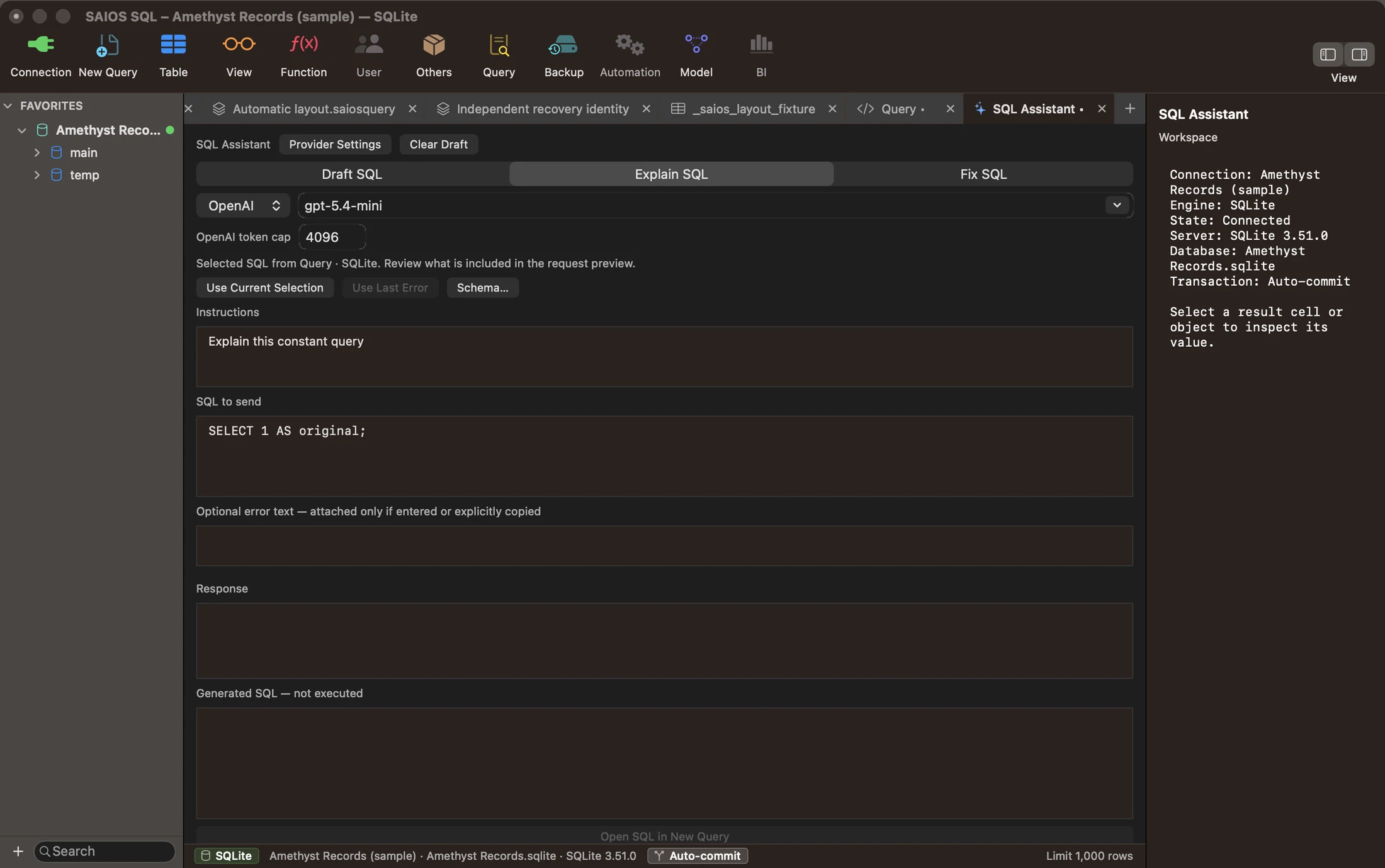
What happens next
Only the file path is saved for OpenAI. The key stays outside the app. For Claude, the app uses your existing sign-in without reading its credentials.
Limits
- The configuration file must be owner-private (permissions 600), at most 64 KiB, with one
OPENAI_API_KEY=valueline. - Claude Code is not installed or bundled. Your account's limits and model access apply.
- A local configuration check does not prove that a model request will succeed.
- There is no key entry field and no local-model provider.
If something goes wrong
- The file is refused.
- Check that it is a regular file you own, readable only by you, with one key line.
- The Claude CLI is not found.
- Install Claude Code yourself, or use Choose Claude CLI… to pick its executable.
One reviewed request at a time. Replies stay as text until you choose to use them, and nothing runs SQL for you.
Steps
- Open the assistant from a query tab. Selected SQL, or the statement at the cursor, is copied in for you to inspect.
- Choose Draft SQL, Explain SQL or Fix SQL, then the provider and model, and enter Instructions.
- Add error text if useful, or choose Use Last Error. Choose Use Current Selection to refresh the SQL.
- Open Schema…, tick relations and choose Attach Selected if the model needs them.
- Read Exact request preview, then choose Send.
- Choose Open SQL in New Query for an unsaved tab, or Replace Original Selection… to review old and new SQL, then Replace in Original Query.
What happens next
Nothing runs. Use the normal Run command when ready. Replacement is one undoable edit, and it is refused if the original query, selection or connection changed.
Limits
- Up to 8 KiB instructions, 64 KiB SQL, 8 KiB error text and 64 KiB schema, with 24 relations, 256 columns per relation and 1,000 columns in total.
- Replies are limited to 512 KiB, with a 120-second timeout.
- Over-limit requests are refused before sending. Nothing is silently shortened.
- Drafts and replies are temporary and excluded from recovery. Save useful SQL in a document.
- Durable chat, streaming, comparison, AI table design and comment generation are not available.
If something goes wrong
- A reply cannot be opened or used.
- Malformed, incomplete, refused or stale replies cannot hand off SQL. Send a new request.
- Replace is refused.
- The source changed. Copy the reply, or send again from the current selection.
You see the exact request first. Provider, model and context never change without you.
Steps
- Treat Exact request preview as the record of what will leave your Mac.
- Use Remove Attachments to take schema details out of the next request.
- Choose Cancel to stop a request in flight. This affects only the assistant's request.
- Choose Clear Draft to discard the local inputs and response.
What happens next
Changing a task, provider, model, SQL, error or schema never sends anything. There is no automatic retry and no switch to another provider.
Limits
- Schema attachments contain names, types, nullability and keys only, with no rows, defaults, comments, raw DDL or row counts.
- SQL and error text you include may contain values. Read them before you choose Send.
- OpenAI requests go to its Responses endpoint, and Claude requests go through your installed CLI. Their handling follows your account terms with each provider.
- No assistant action executes SQL or gives a model database, file or application tools.
If something goes wrong
- I included something by mistake.
- Edit the input before choosing Send. If it was already sent, use your provider's account controls.
Settings, recovery and limits
Preferences, shortcuts, recovery, troubleshooting and what the app does not do yet.
Settings has four sections: General, Editor, Results and Safety & Privacy.
Steps
- Press ⌘, to open Settings….
- On General, choose Appearance and Restore windows and tabs when SAIOS SQL opens.
- On Editor, set Font size, uppercase keywords and line numbers.
- On Results, set Row limit, Cell limit (KB), Result memory (MB), Query timeout (s) and Grid font.
- On Safety & Privacy, control the confirmation prompt and Record query history.
What happens next
Changes apply as you make them. A query timeout of 0 uses each connection's own setting.
Limits
- Defaults are a 1,000-row limit, 1,024 KB per cell, 128 MB of result memory and no global timeout.
- The confirmation prompt is based on statement shape. Use read-only profiles and database permissions for real protection.
- The effect of each setting has not been fully covered by automated tests.
If something goes wrong
- The confirmation prompt stopped appearing.
- Someone chose not to be asked again. Turn it back on in Safety & Privacy.
Every shortcut below comes from the app's own menus. Some change meaning with the current tab.
Steps
- Open any menu to confirm a shortcut in your current tab. The contextual Table, Run and Format menus appear with their tab types.
- Use ⌘1, ⌘2 and ⌘3 to move focus without the pointer.
- Use ⌘? to open the built-in SAIOS SQL Help window, which works offline.
Queries
- ⌘↩
- Run statement or selection
- ⇧⌘↩
- Run script
- ⌘.
- Cancel query
- ⌥⌘E
- Explain
- ⌘Y
- Query history
- ⇧⌘Y
- Snippets
Editing SQL
- ⌥⌘L
- Format SQL
- ⌘/
- Toggle comment
- ⌃Space
- Complete
- ⌘F
- Find
- ⌥⌘F
- Find and replace
- ⌘G
- Find next
- ⇧⌘G
- Find previous
- ⌘E
- Use selection for find
Transactions
- ⌥⌘B
- Begin transaction
- ⌥⌘K
- Commit
- ⌥⌘R
- Roll back
Documents and tabs
- ⌘T
- New query tab
- ⌘N
- New window
- ⌘O
- Open a SQL file or visual query
- ⌘S
- Save, or Review & Apply in a designer
- ⇧⌘S
- Save As
- ⌘W
- Close tab
- ⇧⌘W
- Close window
- ⇧⌘}
- Next tab
- ⇧⌘{
- Previous tab
Workspace
- ⌘1
- Focus sidebar
- ⌘2
- Focus editor
- ⌘3
- Focus results
- ⌃⌘S
- Toggle sidebar
- ⌥⌘I
- Toggle inspector
- ⇧⌘L
- Objects
- ⇧⌘O
- Open object
- ⌘R
- Refresh schema
- ⌘,
- Settings
- ⌘?
- SAIOS SQL Help
Tools
- ⇧⌘N
- New connection
- ⇧⌘B
- Visual Query Builder
- ⌃⌘A
- SQL Assistant
- ⇧⌘I
- Import data
- ⇧⌘E
- Export result
Builders and forms
- ⌘↩
- Run in the Query Builder, Build in the View Builder, Stage Value in the value editor
- ⇧⌘↩
- Build and Run in the View Builder
- ⌘[
- Previous loaded record in Form
- ⌘]
- Next loaded record in Form
- ⌥⌘↑ / ⌥⌘↓
- Version 0.8.15: move the selected output (builders) or new-table field (Table Designer)
What happens next
The full list follows. In visual builders ⌘↩ means Run or Build, and in designers ⌘S means Review & Apply.
Limits
- Shortcuts cannot be customized.
- Full VoiceOver and IME walkthroughs are still pending.
If something goes wrong
- A shortcut seems to do nothing.
- It may be disabled for the current tab or by a running operation. Check the menu to see whether the item is enabled.
With restoration on, unsaved SQL, visual queries and designer drafts are checkpointed on this Mac and come back after a quit or unexpected exit.
Steps
- Keep Restore windows and tabs when SAIOS SQL opens on in Settings… → General.
- After reopening, read each recovered tab. Nothing connects, reads the catalog or runs.
- For unfinished field text, choose Resume Editing or Discard.
- For a table or view draft, choose Reconnect & Compare, or Reconnect & Check for a new object.
- If the stored definition changed, inspect it, then deliberately choose Use Current Definition as Baseline.
- Choose Review & Apply… as usual. The live definition is checked again.
- Choose Help → Recovery Status… to see anything that could not be protected.
What happens next
Recovered drafts stay editable offline. A changed or missing destination keeps the draft and refuses Apply. For visual queries, choose Reload and Run explicitly.
Limits
- This is local protection, not a portable file or a database change. Save important work to files.
- Up to 4 MiB per SQL document or baseline, 32 MiB per snapshot, 20 windows and 200 tabs. Oversized items are omitted whole, with a notice.
- Results, staged grid edits, connections, open transactions, import queues and assistant drafts are not recovered.
- Closing a tab deliberately removes it from recovery, after the usual prompt.
If something goes wrong
- A tab says recovery is unavailable.
- It was unreadable or omitted. If it came from a file, choose Open Last Saved File.
- Apply stays blocked.
- An outside change may conflict with your draft, or an earlier apply may have an uncertain outcome. Compare, then resolve it deliberately.
Start here when something does not work, and use the chapter links for details.
Steps
- Read the message first. The app explains refused actions rather than hiding them.
- Hover over a disabled control. Many give the reason as a tooltip.
- Check the status strip for connection and transaction state, then Messages for errors.
- Open Help → Supported Engines to confirm your engine's runtime and tested versions.
- When asking for help, include the app version, engine and version, and the exact message. Remove passwords, hostnames and private data.
What happens next
If the problem continues, contact us with those details.
Limits
- Do not send database files, connection files or API keys.
- The app does not upload logs or send reports on its own.
If something goes wrong
- Could not connect.
- Check host, port, network path and login, then use Test Connection to isolate it. See connections.
- An action is disabled.
- Common reasons are a read-only connection, a running task, an open transaction or nothing selected.
- A tab will not close.
- Work is still finishing. Cancel it. The tab closes after cleanup.
- Rows look wrong.
- Check the server filter, Filter loaded rows, hidden Columns and whether the result is truncated.
- A review went stale.
- Plans are bound to their inputs and session. Run Review again.
What is unfinished or unverified in 0.8.15.
Steps
- Read Supported engines for what has been tested, because a listed engine is not necessarily a tested one.
- Check the known issues list at the top of the manual and in the help center.
- Read each chapter's Limits section before relying on a workflow.
- Use synthetic or disposable data while evaluating the preview.
What happens next
Release notes record what changes. This manual is updated with each accepted milestone.
Limits
- Not implemented: user and role management, scheduling and automation, BI dashboards, routine editing, model documents, data generation, masking and profiling, bidirectional sync and HTTP tunneling.
- Not tested: SQL Server, Oracle and Snowflake servers, compatible cloud engines, client-certificate authentication, SSH password or passphrase authentication.
- Hands-on coverage is incomplete for VoiceOver, IME input, physical pointer and trackpad gestures, three-card relationship routing, canvas scrolling, View Builder resizing, manual recovery and light appearance.
- Release 0.8.15 focused automated acceptance passed on MacBook Pro with macOS 26.7.2 and MacBook Neo with macOS 27.3. Neo checks cover local workflows; broader remote-engine and physical-input acceptance remain open.
- Very large databases, network volumes and disk-full conditions have not been separately accepted.
If something goes wrong
- I need a feature listed here.
- Tell us about your workflow. We would rather scope it honestly than imply it exists.